
Stock-taking
Main → Operations → + → Stock-taking
However careful the bookkeeping, real shelves drift from the records. A Stock-taking operation (Count & reconcile) fixes that: you enter the quantities you actually counted, and they replace the recorded stock.
-
Start a Stock-taking operation from Operations → +.
-
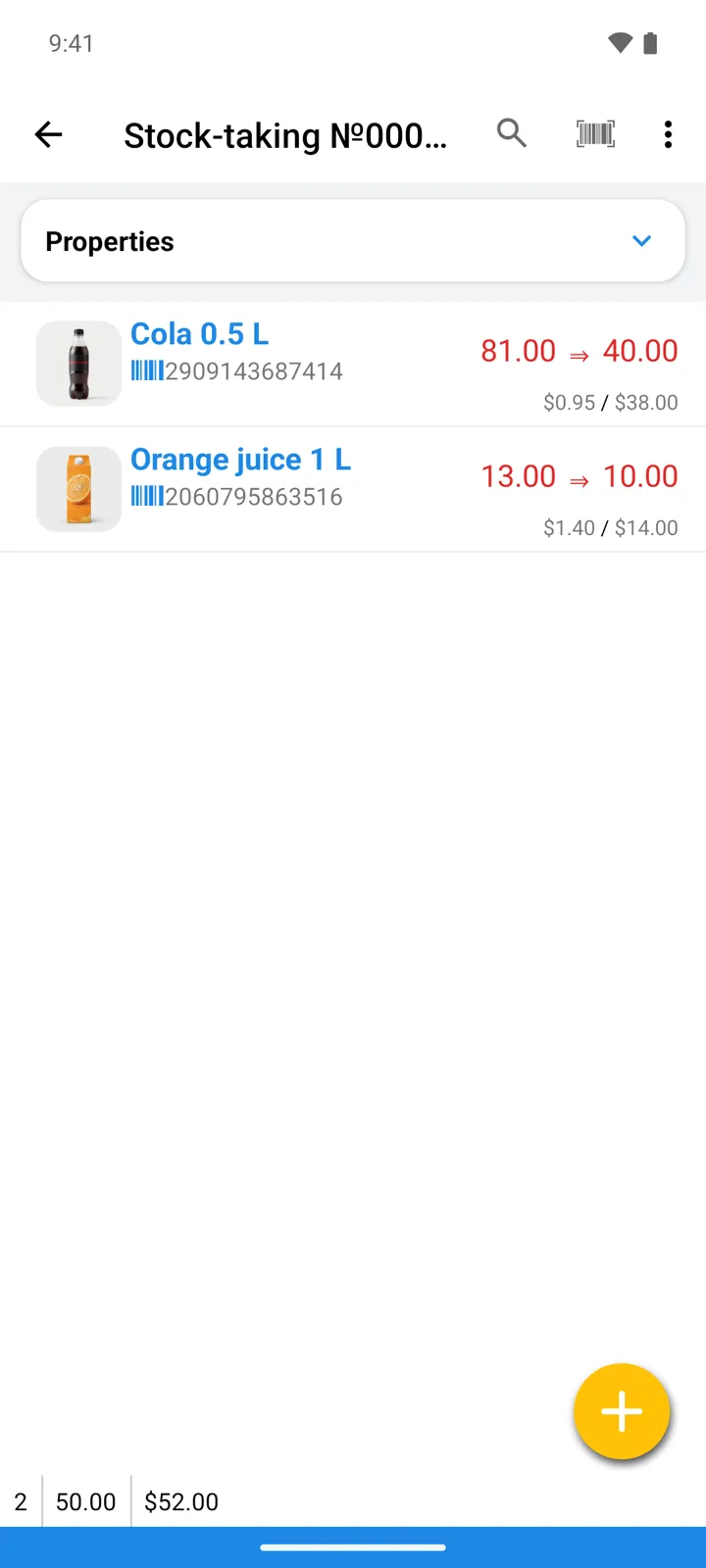
Count. Tap the big yellow + button to open your goods list, find the item (search, or tap the barcode icon in the search field to scan), and enter the quantity you physically counted — not the difference, the real count. For long shelves, the Batch scan button is faster: scan item after item continuously, entering each count as you go.
-
Read the list as you work: every item shows two quantities — what the app had recorded before, and what you counted. Each entry is applied instantly; there is no final “save” for the operation.
-
Counted everything you can see? Open View missing items in the ⋮ menu — it lists catalog items not yet in this operation, and adding them from there records their counted quantity as zero. That’s how a full count catches items that vanished entirely.
Good to know
Section titled “Good to know”- Count one store at a time — a Stock-taking operation counts the store you’re working in (Select store); in All Stores mode the app asks which store first.
- Items you leave out keep their recorded quantities — nothing is zeroed unless you add it (directly or via View missing items).
- The difference between recorded and counted shows up in reports as Inv.variance.
- Deleting a Stock-taking operation reverses the adjustments it made: each item’s current quantity is corrected by the difference that count introduced, so operations recorded after it stay intact. The usual below-zero guard applies here too.