
Add goods to the catalog
Main → Goods → +
The Goods screen is your catalog — every item you stock, with its current quantity. Operations refer to catalog items, so the catalog comes first.
-
Open Goods and tap the + button to add an item.
-
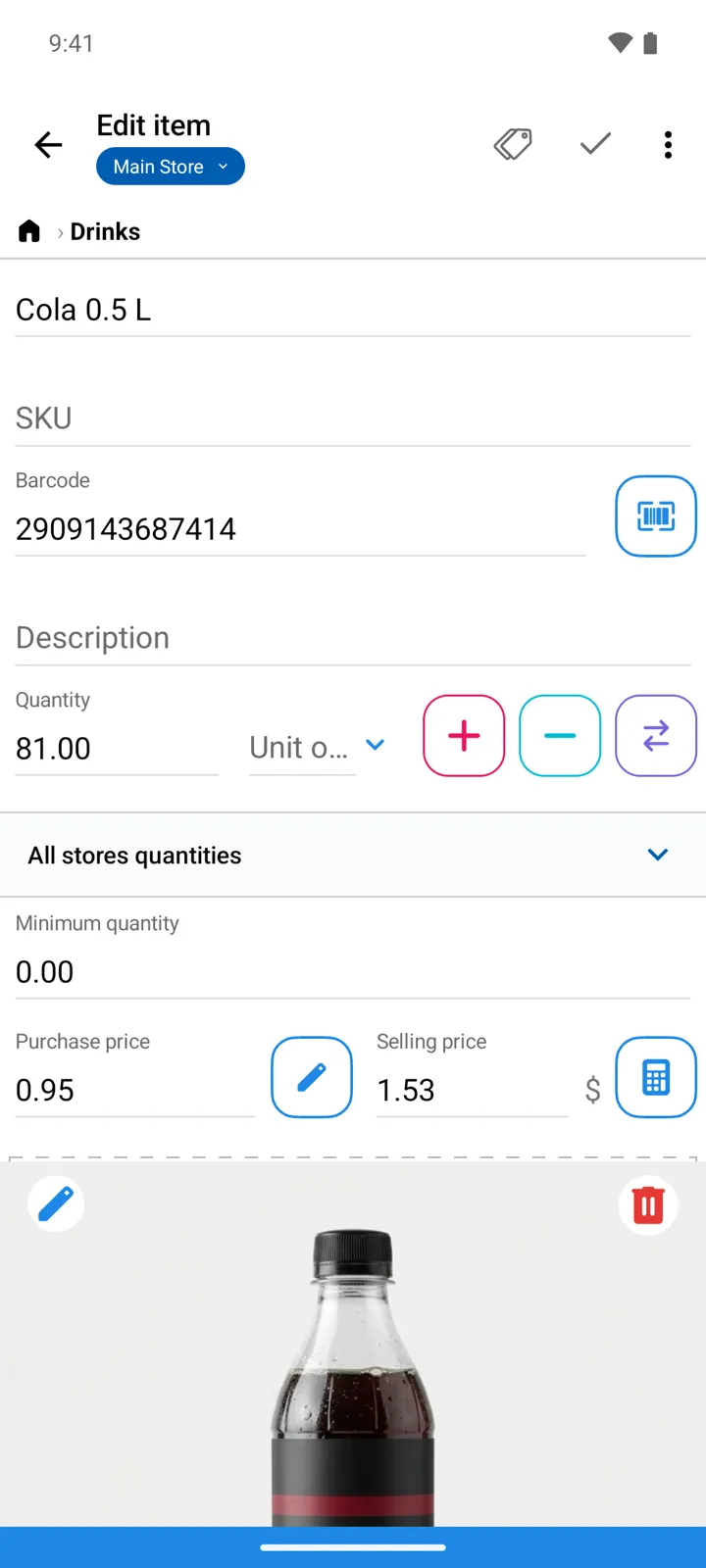
Enter the Name — it’s how you’ll find the item everywhere.
-
Add what you’ll actually use — in the order the form shows them (everything except the name is optional):
- SKU — your internal article code, if you use one.
- Barcode — type it, or scan it with the camera. An item can have a barcode even if you never print one.
- Description — free-form notes about the item.
- Your own custom fields, if you’ve defined any — text, multi-line text, number, date, barcode, or a pick-from-list.
- Unit of Measure — next to the quantity.
- Minimum quantity — the level below which the item counts as running low.
- Purchase price and Selling price — the defaults offered on operation lines.
- Photos, at the bottom of the form — an item can have several.
-
Already holding stock of this item? Tap + beside the Quantity field and enter the amount you have. The app records it as a separate Incoming operation with just this item, so the quantity has a paper trail like everything else.
-
The path under the title shows which folder the item is in — a new item lands in the folder you were viewing when you tapped +. To move it later, choose Move to group from the item’s ⋮ menu.
-
Save.
Groups
Section titled “Groups”Groups are folders in the catalog — Drinks, Snacks, Tools — and they can nest. Create them from the Goods screen the same way as items, and move items between groups at any time.
Good to know
Section titled “Good to know”- Quantity is always backed by an operation. Even the + beside the Quantity field records an Incoming operation behind the scenes. Day to day, receive stock with an Incoming operation and correct real-world counts with Stock-taking — that discipline is what keeps reports honest.
- Don’t see a field from this list? Several fields — Barcode, Description, Tags and others — can be switched on and off in Settings → Goods properties.
- Already have the catalog in a spreadsheet? Import it from Excel instead of retyping.