
Back up and restore
Main → Settings → Backup and Restore
Your inventory lives on one phone — until it doesn’t. In StoDo Simple the database is local, so backups are yours to make: a one-tap file backup for peace of mind, and a scheduled cloud auto-backup so you never have to remember. (StoDo Online stores data in the cloud by design; this page is about Simple.)
-
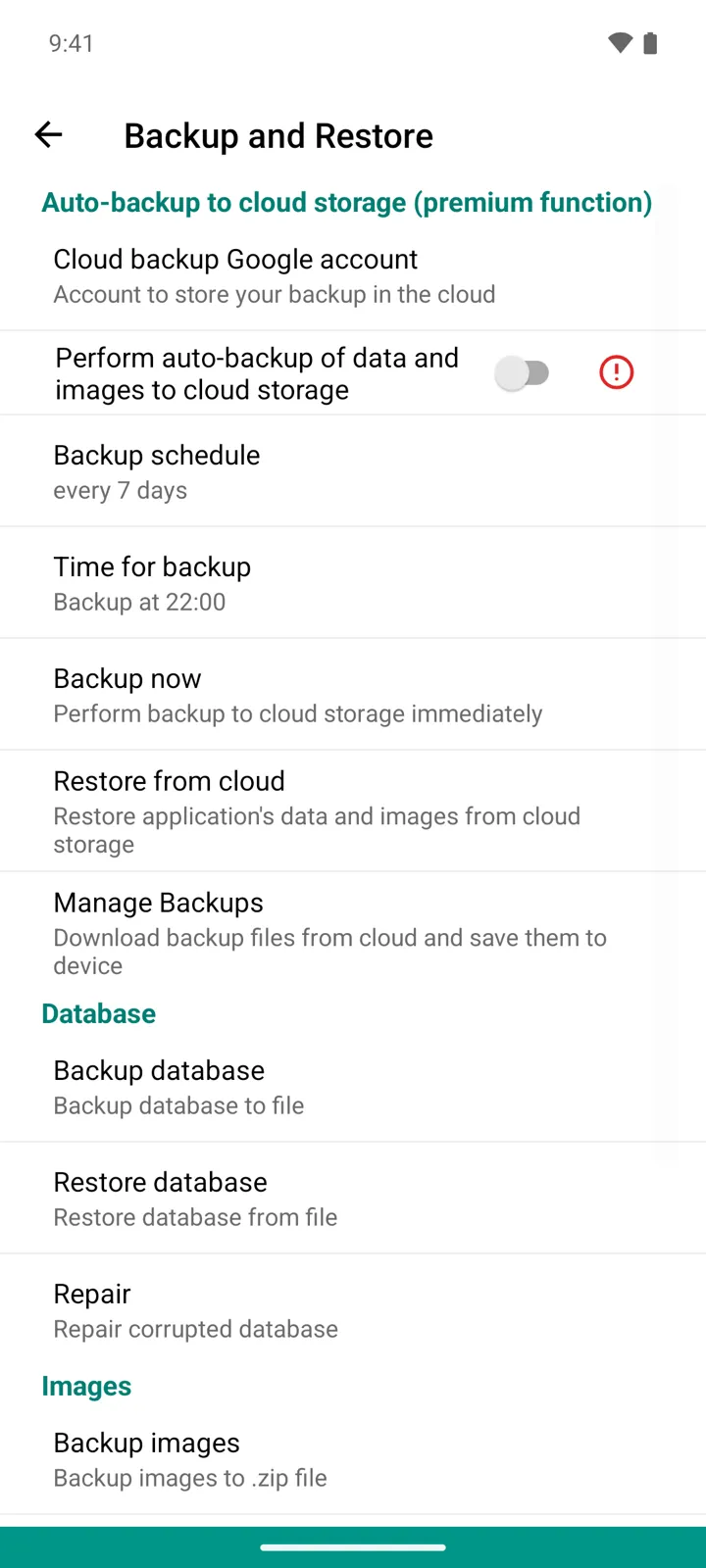
Make a safety copy now: Backup database writes everything — goods, operations, contractors, settings data — into a single file. Keep it off the phone: a cloud drive, an e-mail to yourself. Item photos travel separately: Backup images packs them into a .zip.
-
To restore, use Restore database and pick the file — it replaces what’s currently in the app — then Restore images with the images .zip. The database file doesn’t contain photos, so restore both if you backed up both.
-
Let it run itself: under Auto-backup to cloud storage (a Premium function), pick your Cloud backup Google account, switch on Perform auto-backup of data and images to cloud storage, and set the Backup schedule — daily, every 3 days, or every 7 days — and the Time for backup. Backup now uploads one immediately; if the phone is off at the scheduled time, the backup runs at the next opportunity.
-
Coming back from a lost or reset phone: sign in with the same Google account and use Restore from cloud — data and images both. Manage Backups lists what’s stored in the cloud and can download a backup file to the device.
Good to know
Section titled “Good to know”- Test the pair: a database backup without the images .zip restores everything except photos. If photos matter, always make both.
- Moving to a new phone? The same files do it — step-by-step guide.
- Repair under Database rebuilds a corrupted database — try it if the app reports database errors before reaching for a backup.
- The Delete Data section is the danger zone: Clear database wipes everything, Delete all operations keeps only the goods dictionary, and Delete all data and account is irreversible — the app warns you, and so do we.