
Print an invoice or receipt
Main → Operations → (open a sale) → ⋮ → Print
A sale on the screen often needs to leave the phone as paper or PDF — an invoice for a customer, a receipt from a POS roll, a delivery note for the driver. Any operation prints the same way: through a print template that lays your data out on the page.
-
Open the operation and choose Print from its ⋮ menu (the app saves it first). The Select print template sheet lists your templates for this operation type.
-
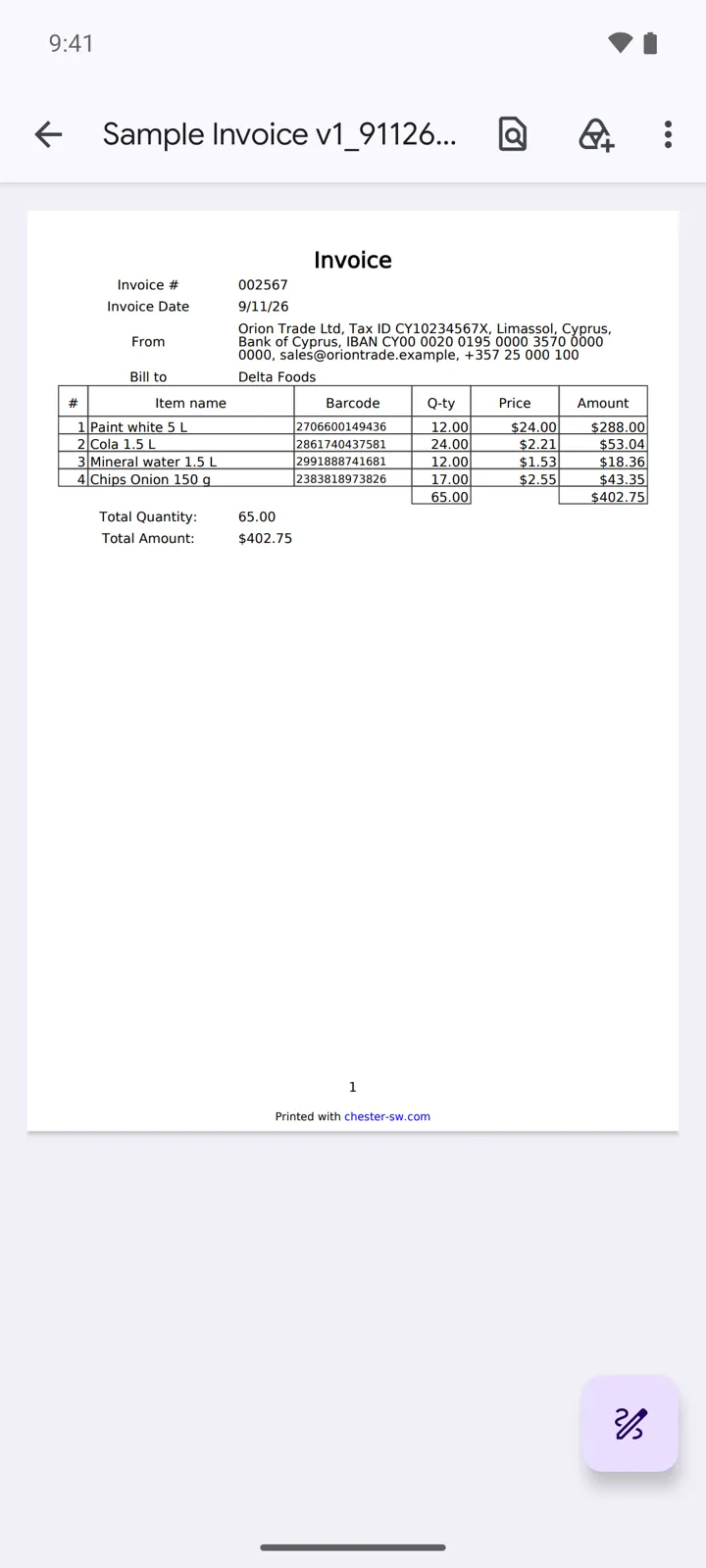
No templates yet? Tap Manage templates — with none installed, the Print templates screen drops you straight on its Download tab. Pick a ready-made form — Sample Invoice v1 or Sales receipt for POS printer for sales — and it lands in My Templates, ready to use and edit.
-
Back in the sheet, tap the template. The app builds a PDF and asks what to do with it — Select option: Open it, Print it through Android’s print dialog (any printer set up on the phone, or Save as PDF), Share it by e-mail or messenger, or Save the file.
Good to know
Section titled “Good to know”- Fill in Settings → My Company once — name, address, bank details, a logo — and invoice templates print your company block from there. The customer’s block comes from their card.
- Templates are tied to the operation type: a sales invoice won’t appear on an Incoming operation — the Download tab offers forms per type, like Purchase order template for Incoming.
- Receipt templates for POS roll printers print narrow — pick Sales receipt for POS printer rather than an A4 invoice for a till.
- Every template is editable — header, table columns, footer, even your logo and custom fields — see Print templates.
- The same ⋮ → Print exists on the goods list too, for barcode labels and price tags.