
Sign in and your account
StoDo Online → Sign in with Google
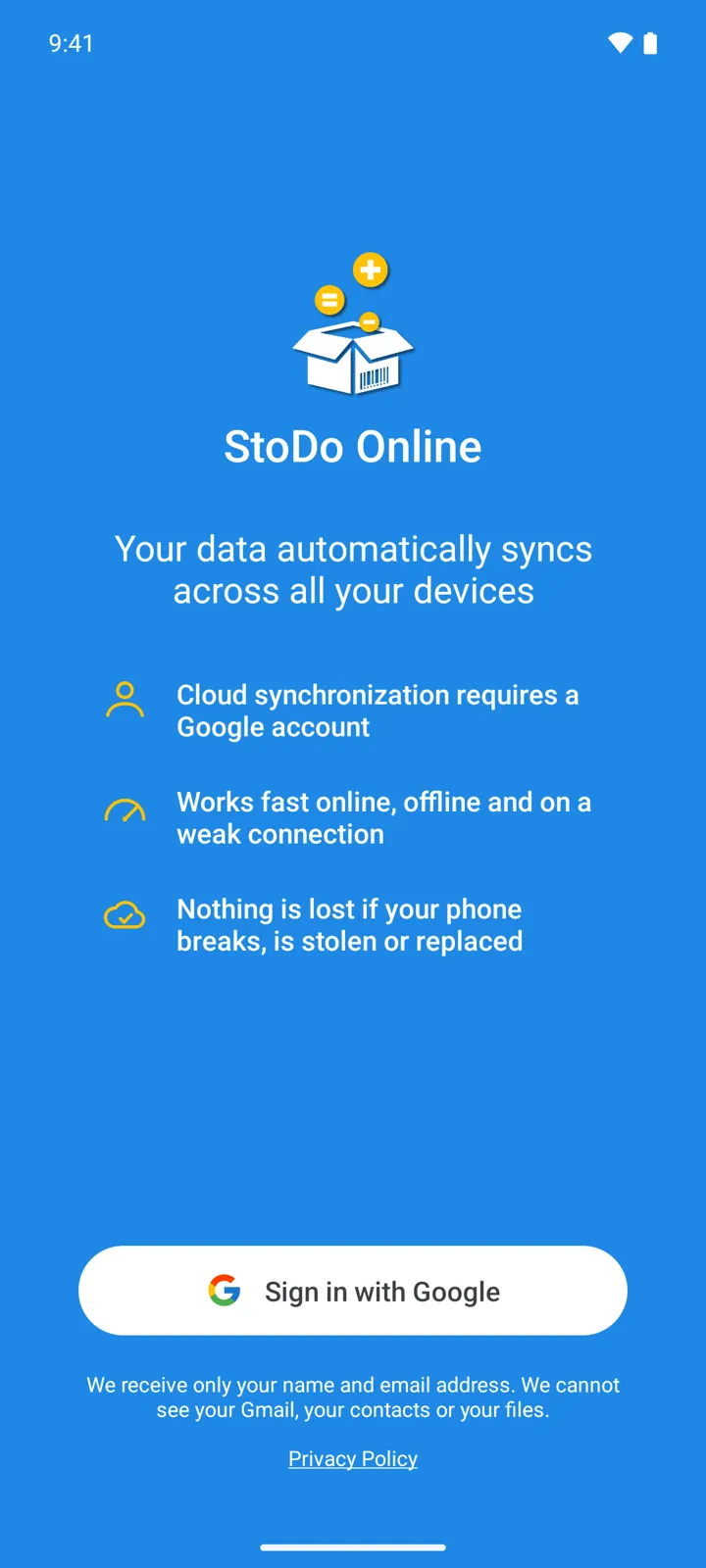
StoDo Online has no password to invent and none to forget: the app signs in with your Google account, and that account is the key to everything you keep in the cloud. Signing in on any device brings your inventory with it.
-
Tap Sign in with Google on the start screen and pick an account. The promise printed right below the button holds: “We receive only your name and email address. We cannot see your Gmail, your contacts or your files.”
-
Wait out the first “Sync in progress …”. A new account gets its own cloud database; from then on the app opens straight into it. New here? The quick start takes you from this point to your first sale.
-
On a second device — a backup phone, a tablet at the counter — install StoDo Online and sign in with the same account: your data syncs down. When more than one database is available to you, the app asks which to open — Select database.
-
To sign out, open the drawer: your account’s e-mail sits at the bottom with the log-out button beside it. Signing out returns the app to the start screen — your data stays in the cloud, waiting for the next sign-in.
Good to know
Section titled “Good to know”- Your e-mail address is your identity in StoDo Online: it’s where invitations to other people’s databases arrive, and how the members of your database are listed.
- Signed in after an invite but greeted with “You don’t have access to any Store. Contact the database owner …!”? You’re in, but the owner hasn’t opened any store to you yet — access is theirs to grant.
- The app works with one account at a time: to switch Google accounts, sign out and sign back in with the other one.
- Closing your account for good — deleting its data and backups — is a separate, irreversible step.