
Print templates
Main → Operations → (open an operation) → ⋮ → Print → Manage templates
Everything StoDo prints goes through a print template: a page layout with a header, a table of lines, and a footer, each built from fields you choose. Download a ready-made form and adjust it, or build your own from a blank page — for an A4 invoice, a narrow POS receipt, or a sheet of labels.
-
Open the Print templates screen from any Print action — its Manage templates button. Two tabs: My Templates holds yours, Download is the gallery of ready-made forms for that document type. Start by downloading the closest match — Sample Invoice v1 is a better first template than an empty page — then tap it in My Templates to edit.
-
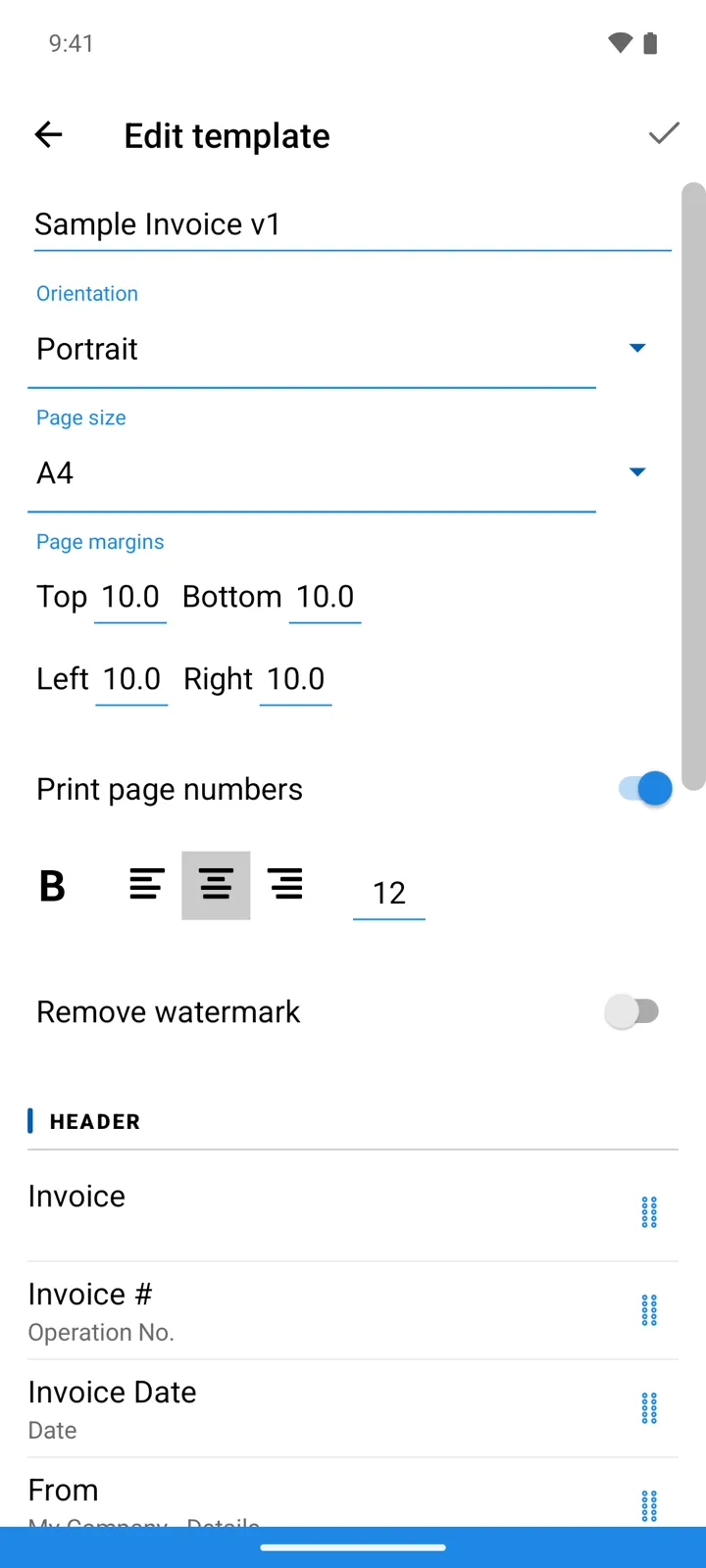
Set up the page: Orientation (Portrait / Landscape), Page size — the A-series and US paper sizes, or Custom size with width and height in mm. for receipt rolls and label stock — plus Page margins and Print page numbers.
-
Fill the three sections. Header and Footer print once per page; Table data defines the columns of the lines table. Tap + in a section to add an item and pick its Data type: the operation’s date and number, the customer block, your own company block and logo (filled from Settings → My Company), item fields including custom fields — or a fixed Value you type yourself, for terms or a signature line.
-
Style each item as you add it: caption, font size, bold, alignment, Word wrap, and — for table columns — Width(%) and Print totals, which adds a totals row under a numeric column.
-
For labels and price tags, switch List style from Table to Cards and set how many columns of cards fill the page (col.). Print each card on a separate page suits roll printers, and Repeat each card “Quantity” times prints one label per unit in stock.
-
Save, then test it for real: open an operation, ⋮ → Print, pick the template — the PDF preview shows exactly what your customer will get. Printing an invoice.
Good to know
Section titled “Good to know”- Every PDF carries a small “Printed with …” line at the bottom. The Remove watermark switch turns it off — it’s part of Premium.
- Templates belong to a document type: an Outgoing template serves sales, an Incoming one purchases. The goods list has its own template family for labels and price tags.
- Barcode items have extras of their own: Barcode type, Square cell, and Print value under barcode for the human-readable digits.
- A template is a small file — the Download gallery installs them in one tap, and editing never touches your data, so experiment freely.