
Register sales
Main → Operations → + → Outgoing
A sale or shipment is an Outgoing operation (Ship out or sell). Saving it lowers the stock quantities and records the sale at your selling prices — that’s where the profit figures in Reports come from.
-
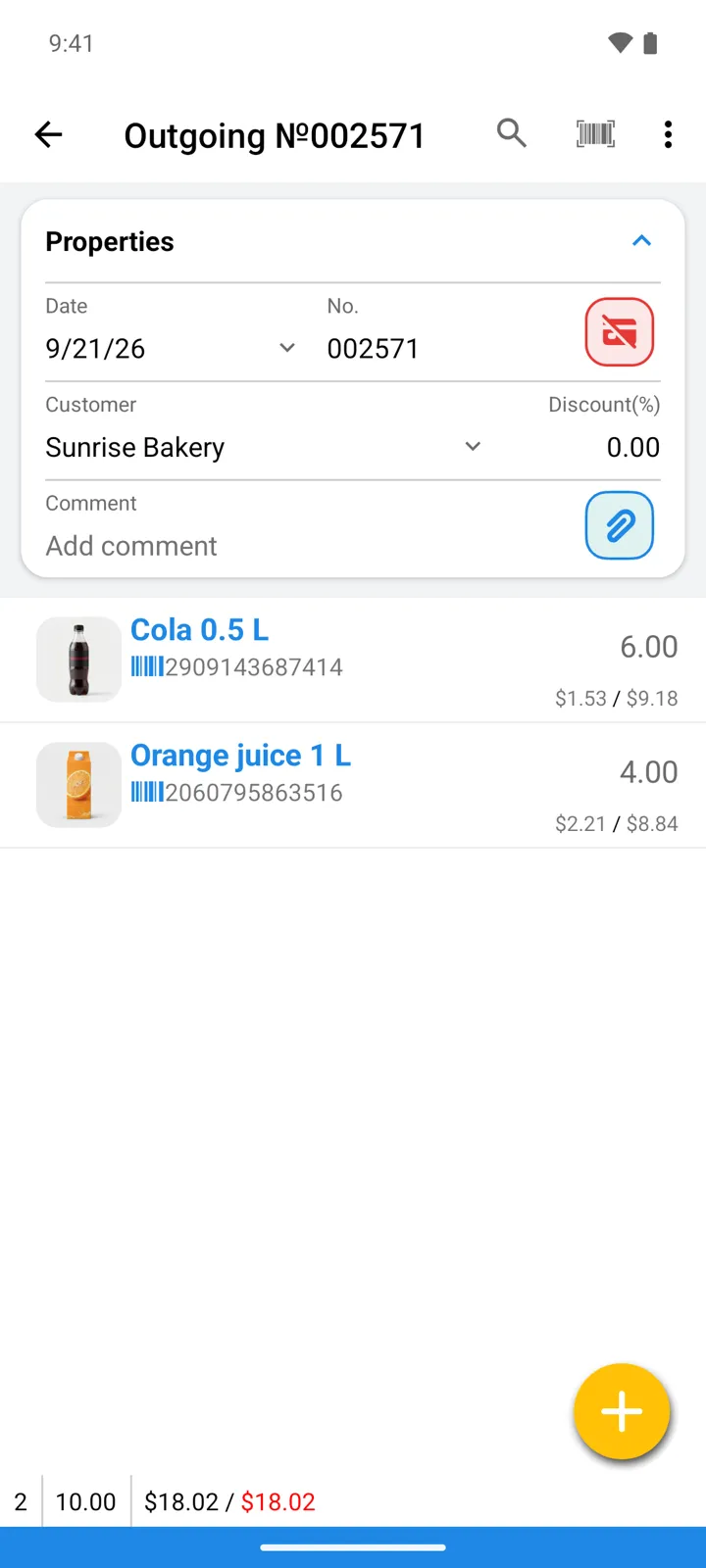
Open Operations, tap +, choose Outgoing. The New Outgoing card on the main screen does the same in one tap.
-
If you want customer payments and debts tracked, pick the Customer in the header.
-
Add the items sold: tap the big yellow + button — your goods list opens. Find the item (type in the search field, or tap the barcode icon beside it to scan), tap the item, enter the quantity, confirm with OK.
-
Check the Selling price on each line. It’s pre-filled from the item (or the customer’s price list) and you can adjust it for this sale.
-
Save. Stock goes down; the sale appears in Reports.
Selling a single item
Section titled “Selling a single item”For a quick one-item sale, open the item in Goods and tap its − button: the Issue goods dialog asks for the quantity, price and — optionally — the customer, and records the Outgoing operation for you behind the scenes.
Good to know
Section titled “Good to know”- By default you can’t ship what you don’t have: if a line would push an item’s stock below zero, the app refuses — “Operation can result in negative quantity in stock… Action cancelled!”. Receive the goods first with an Incoming operation — or, if your workflow really needs it (say, selling before deliveries are booked in), turn on Allow negative quantity in stock in Settings → Goods properties.
- With a Customer set, the operation joins payment and debt tracking — see Payments and debts.
- Need a paper trail? The sale prints as an invoice or receipt through customizable templates — guide.
- A buyer bringing goods back is a Customer return, not a negative sale.
- Running several stores? The operation ships from the store you’re working in (Select store); in All Stores mode the app asks which store first.