
Search and filter
Main → Goods → Search…
A catalog past its first hundred items needs more than scrolling. The Goods screen searches as you type, scans, listens — and when a name isn’t what you remember, it searches your barcodes, SKUs, tags, and custom fields instead.
-
Tap the search icon on the Goods screen and start typing — the list narrows with every letter. The microphone in the field takes voice input, and the barcode icon scans a code and finds its item on the spot.
-
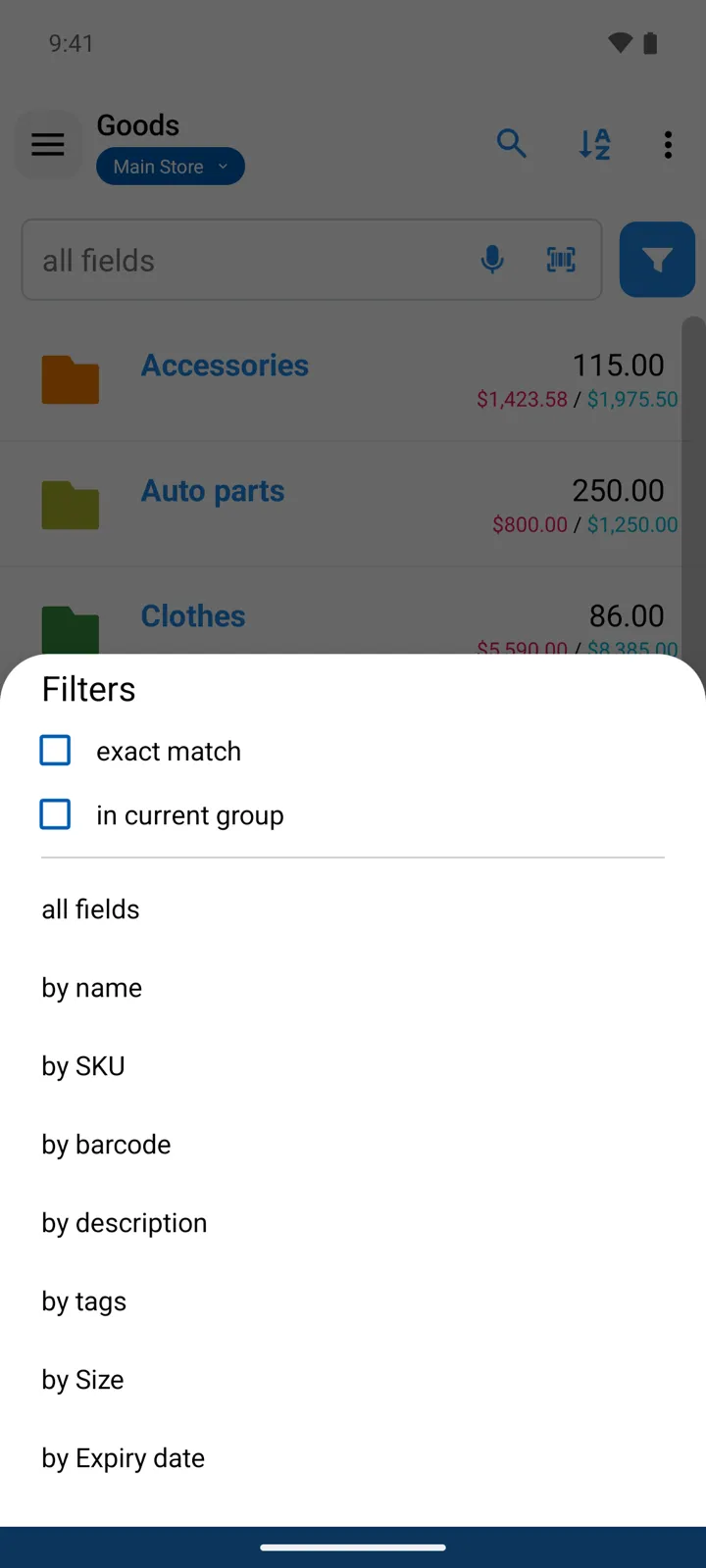
Choose what to search: the funnel button next to the field opens the Filters sheet, where you pick the scope — all fields, by name, by SKU, by barcode, by description, by tags, or by any custom field you’ve created. The current scope shows as the field’s hint text.
-
Tune how strictly it matches with the sheet’s two checkboxes. Off, exact match splits your query into words and finds them in any order (cola 0.5 finds Cola 0.5 L); on, the phrase must appear exactly as typed. in current group keeps the search inside the group you’re browsing instead of the whole catalog. A dot on the funnel button reminds you an option is active.
-
Sort with the Sort by icon in the toolbar: Name, Barcode, Quantity, Description, Purchase price, Selling price — plus SKU and custom fields when you use them. Each column has ascending/descending/off arrows, and dragging the rows decides which column sorts first.
Good to know
Section titled “Good to know”- all fields looks inside custom fields too — typing a serial number finds the item that carries it.
- Searching by tags lets you pick from your existing tags instead of typing; a drop-down custom field likewise offers its list of values.
- The same search panel appears wherever you pick goods — adding lines to an operation, a price list, or the returns picker, where it can also search by Operation No. to find everything sold on one receipt.
- The Operations and Expenses screens have filters of their own — this page is about the catalog.