
Custom fields
Main → Settings → Custom fields for Goods
The built-in fields don’t know your business. Custom fields do: a Size for clothing, a Serial number for electronics, a Supplier invoice No. on deliveries. StoDo has two independent sets — fields for goods (they appear in the item form) and fields for operations (they appear on operation lines). Custom fields are part of Premium.
-
Open Settings → Custom fields for Goods (or Custom fields in Operations) and tap +.
-
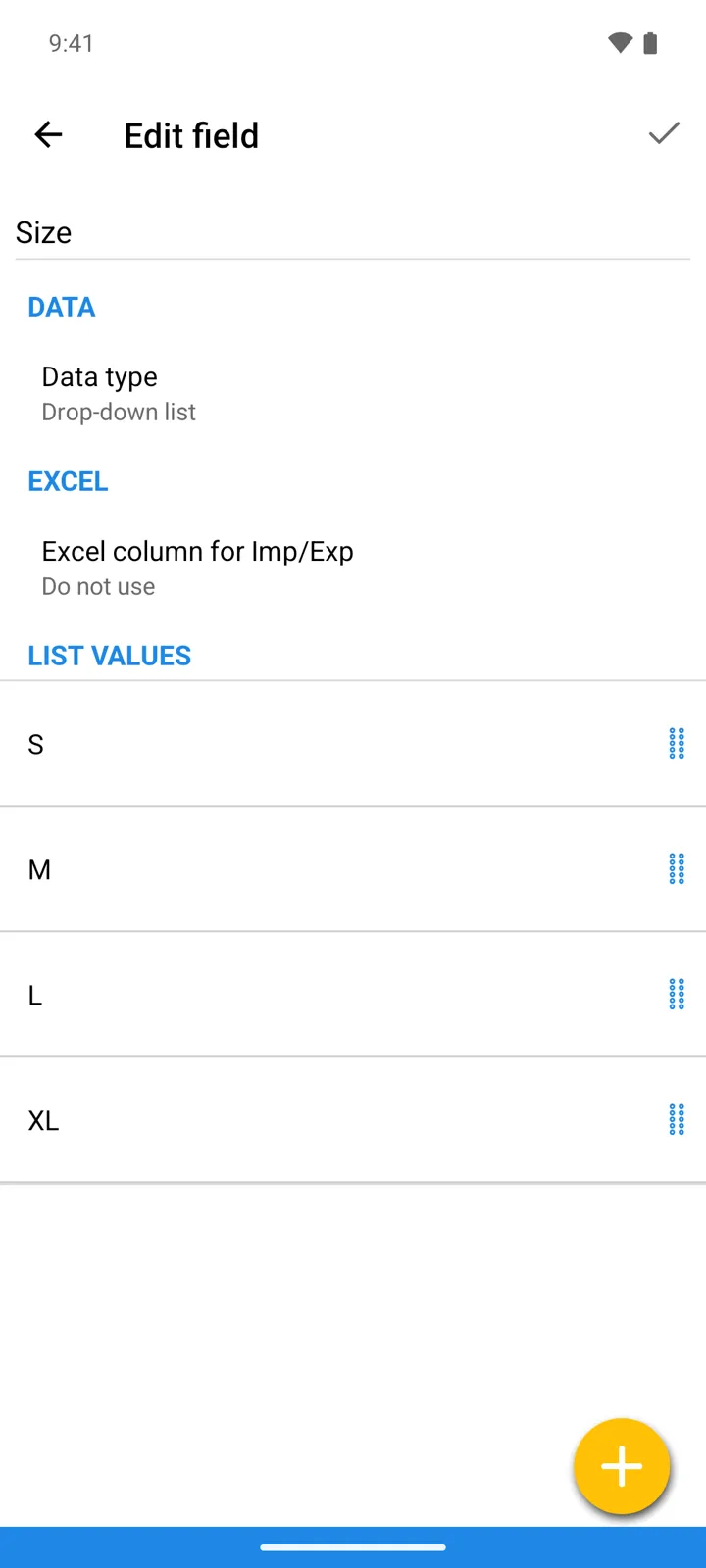
Name the field and pick its Data type. Goods fields offer String, Number, Date, Multi-line text, Barcode, and Drop-down list — for a list, you define the options right there. Operation fields offer the first four.
-
For an operation field, Use in Operations chooses which operation types carry it — a Supplier invoice No. belongs on Incoming, not on Stock-taking.
-
Planning to move data through spreadsheets? Give the field an Excel column for Imp/Exp and it travels with imports and exports like any built-in field.
-
Use it: goods fields sit in the item form after the Description; operation fields appear when you fill in a line.
Good to know
Section titled “Good to know”- The goods search in all fields mode looks inside custom fields too — a serial number finds its item.
- Two fields can’t share a name: “Field with this name already exists!”
- Deleting a field deletes its data everywhere — the app warns first: “All data stored in this field will be deleted. Delete this field?”
- Print templates can place custom fields on printed documents.