
Stores
A store is a place where stock lives — a shop, a warehouse, a market stall. Every quantity and every operation belongs to exactly one store. A new database starts with a single store named Main Store; if one location is all you have, you can rename it and rarely think about stores again.
The working store
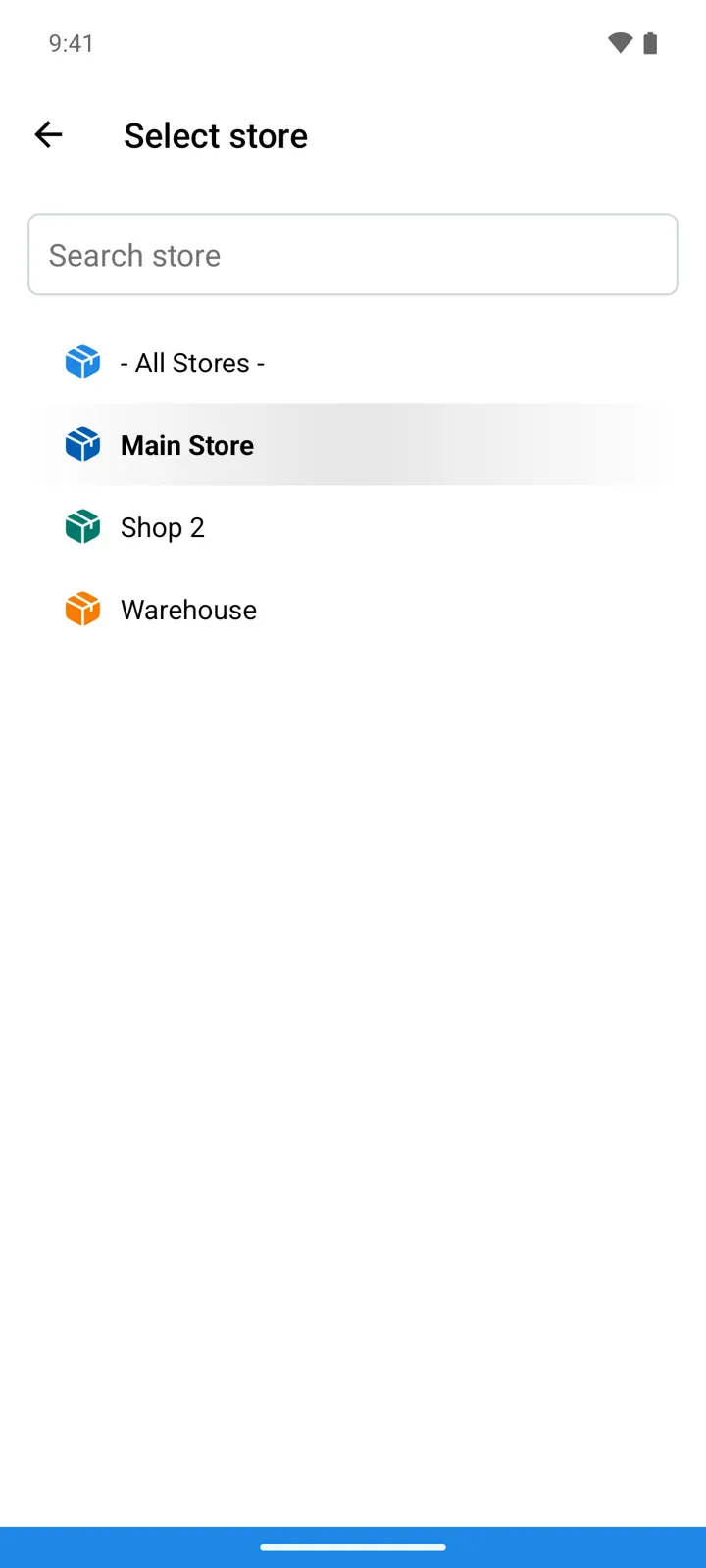
Section titled “The working store”The app shows one store at a time — the working store. On the main screen it appears as a colored pill right under the app title; tap the pill to open Select store and switch. A main-screen card can carry the Select store function too — that card then displays the current store’s name.
The working store is what the rest of the app follows:
- Goods shows each item’s quantity in that store.
- New operations are registered in it — details.
Picking - All Stores - at the top of the picker switches to the combined view: lists show every store together, and whenever you create an operation the app first asks which store it belongs to (a Transfer also asks for the destination).
The Stores screen
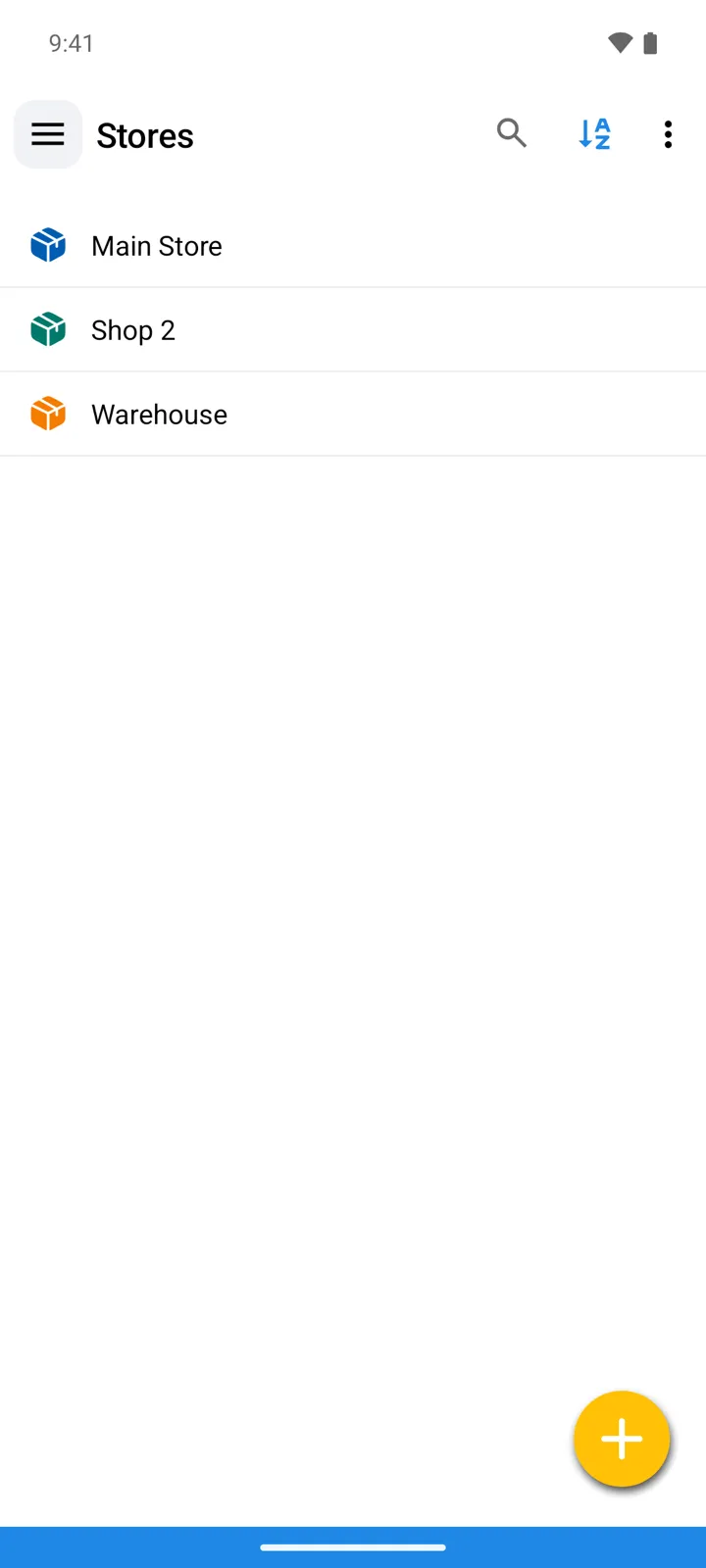
Section titled “The Stores screen”Stores — a main-screen card or the drawer entry — manages the list:
| Control | What it does |
|---|---|
| Store row | The store icon in the store’s color, the name, and a badge when a price list is bound. Hidden stores are greyed out and sink to the bottom. |
| Tap / long press | Tap a store to edit it; long-press (or swipe it left) to delete. |
| Search | Filter stores by name — typed or dictated. |
| Sort by | Reorder the list. |
| + | Add a store. Without a subscription you can add two; the Multiple Stores premium feature lifts the limit. |
Store settings
Section titled “Store settings”In form order:
| Field | What it does |
|---|---|
| Name | Must be unique — a duplicate is refused. |
| Store color | Tints the store’s icon and the toolbar pill, so you always see at a glance which store you’re in. |
| Hide | Takes the store out of every Select store picker while keeping all its stock and history. It stays on the Stores screen, greyed, so you can unhide it later — useful for a seasonal or closed location. |
| Price list | Binds a selling price list to this store. The field appears only where price lists are available — currently StoDo Simple, with Use Prices on. |
Deleting a store
Section titled “Deleting a store”- A store with registered operations can’t be deleted — the app answers “There are transactions (operations) registered in this store. You can’t delete it!”. Delete its operations first, or simply Hide the store and keep the history.
- Main Store — the store created with the database — can’t be deleted at all, only renamed.
- If you delete the store you’re currently working in, the app switches you back to Main Store.
Stores elsewhere in the app
Section titled “Stores elsewhere in the app”- Transfer operations move stock from one store to another — guide. With a single store the app reminds you: “Add second store to create Transfer operations!”
- To see an item’s stock in every store at once, expand All stores quantities in its card — or long-press the item in Goods and pick the same option.
- A goods group can be limited to certain stores: in the group’s settings, under Visible in Stores:, turn off - All Stores - and tick the stores that should see it.
- In StoDo Online, which stores a user sees is ticked per user (Access to Stores on their card); what they may do in them comes from their profile.