
Databases
Main → Settings → Databases
In StoDo Online your inventory lives in a cloud database. Your account starts with one of its own, and the same list shows any databases other people have shared with you. One database is active at a time; everything in the app — goods, operations, reports — is that database’s data.
The list
Section titled “The list”- Each row is a database you can work in, and rows are labelled by e-mail, not by a database name: your own database shows your account’s e-mail in bold; a shared one shows the e-mail of the owner who invited you, in angle brackets. A connected icon marks the one you’re in now.
- Tap another row to switch. The app confirms — “Switching to another database requires restarting the application. Continue?” — then restarts into the chosen database.
- The settings button appears only on the connected row: you manage the database you’re in, so to manage another one, switch first.
- New rows appear when someone invites you to their database.
The database screen
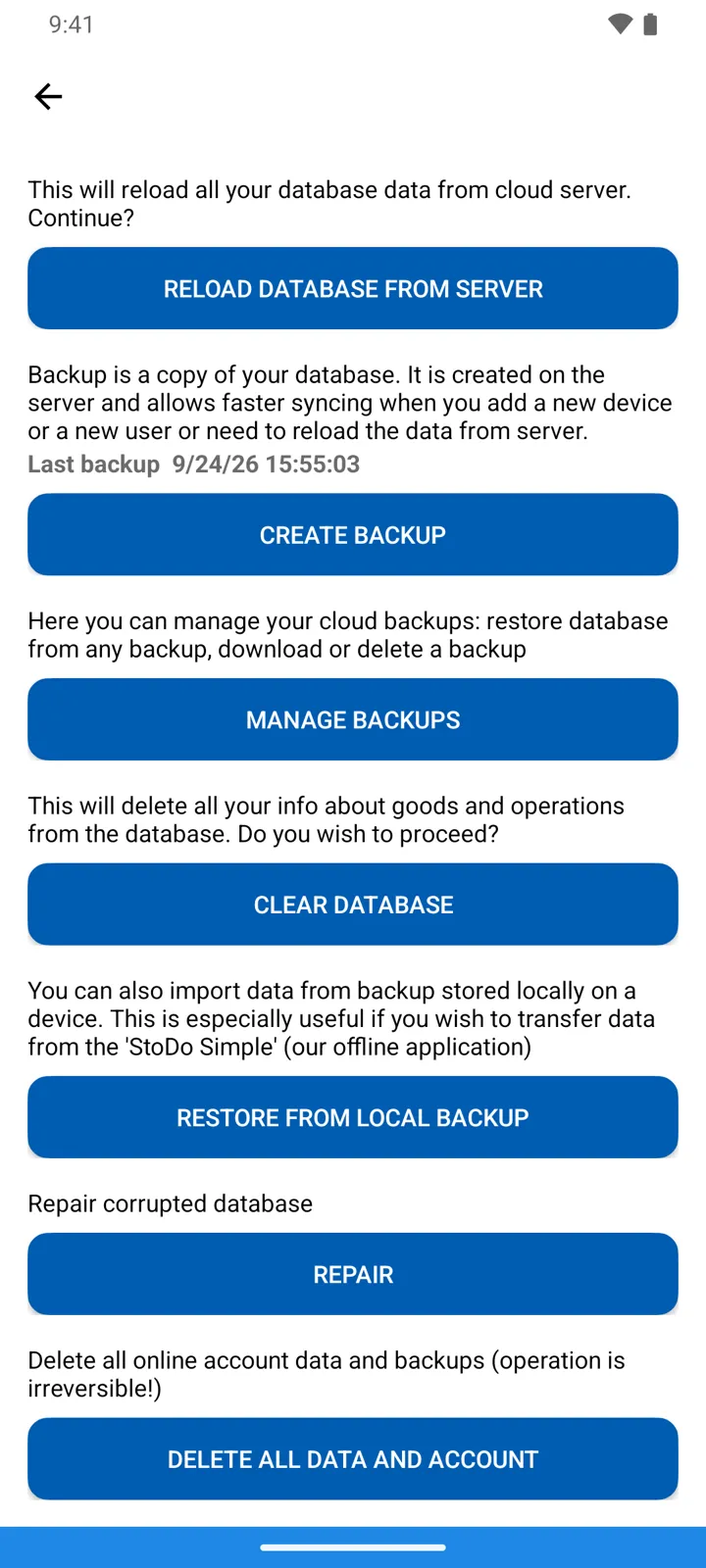
Section titled “The database screen”The settings button opens the database’s screen. Top to bottom (invited users see only the first and the repair tool — the rest is owner-only):
| Tool | What it does |
|---|---|
| Reload database from server | Re-downloads everything from the cloud — the first fix when a device looks out of sync. |
| Create Backup | A server-side snapshot of the database. In the app’s words: “It is created on the server and allows faster syncing when you add a new device or a new user or need to reload the data from server.” The section shows Last backup with its date. |
| Manage Backups | The stored snapshots: “restore database from any backup, download or delete a backup” — cloud backups guide. |
| Clear database | Empties the database: “This will delete all your info about goods and operations from the database. Do you wish to proceed?” |
| Restore from local backup | Imports a backup file made on the device — this is the Simple → Online migration path. Replaces the database’s contents. |
| Repair | ”Repair corrupted database” — rebuilds the app’s local copy when it reports database errors. |
| Delete all data and account | The end of the line: “Delete all online account data and backups (operation is irreversible!)” — deleting your account. |
Good to know
Section titled “Good to know”- Reload and Repair solve different problems: Reload re-downloads your data from the server; Repair fixes a broken local copy of it.
- There’s no per-database delete. Clear database empties one you own; Delete all data and account removes everything tied to your account.
- The app currently has no button for creating a second database of your own — additional rows come from other people’s invitations.