
Cloud backups
Main → Settings → Databases → (your database) → Create Backup
Sync keeps every device current — including current with mistakes. A cloud backup is a snapshot of your database on the server: restore it after a botched import or an over-eager cleanup, and let it speed up every new device and user you add.
-
Take a snapshot before anything risky: on your database’s screen, tap Create Backup — “Backup was created successfully!” — and the section starts showing Last backup with its date.
-
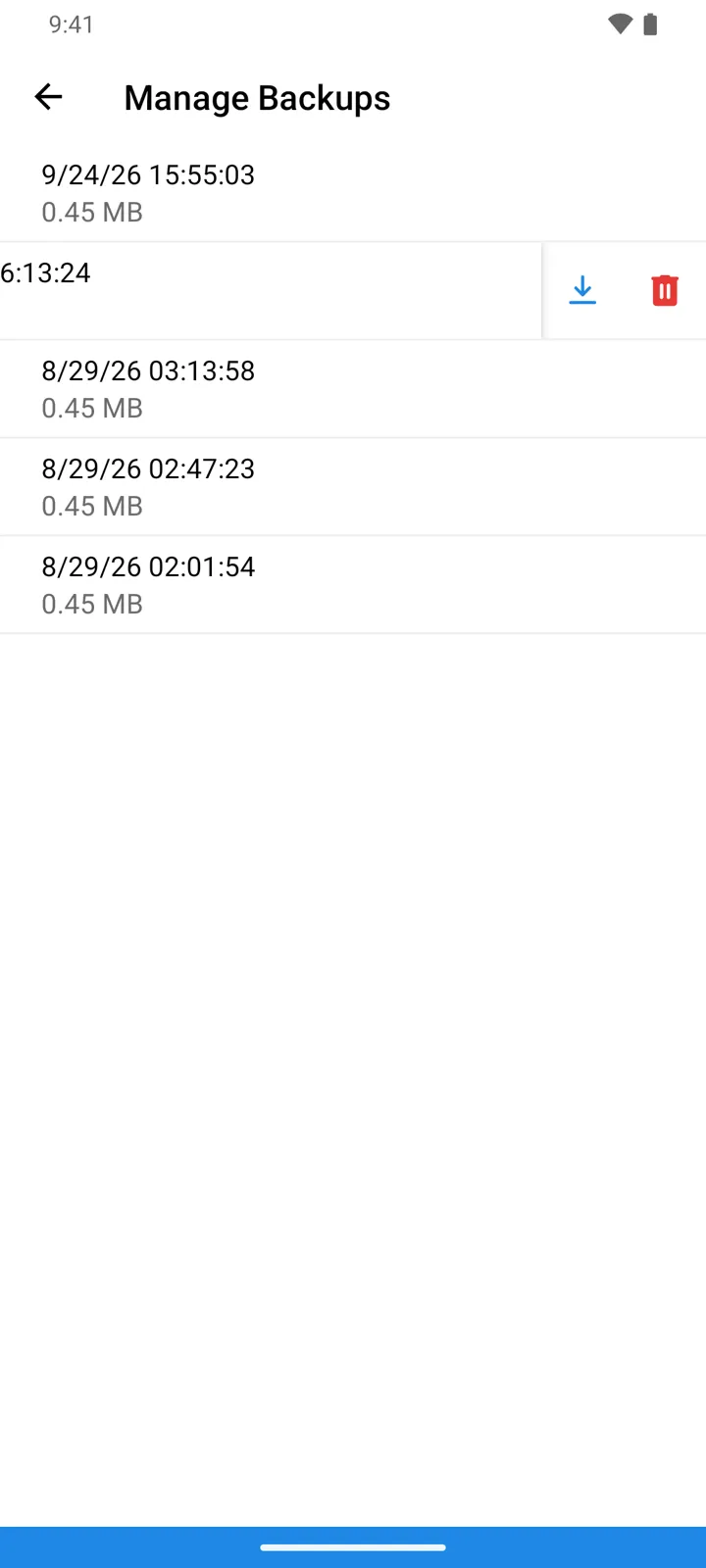
Manage Backups on the same screen lists your snapshots, each with its date and size.
-
To roll the database back, tap a snapshot. The warning is red for a reason — “Current database will be deleted. Do you want to restore database from backup?” — the restore replaces the database’s contents with the snapshot for everyone who works in it, and everything added after the snapshot is gone.
-
To keep a copy outside the cloud, swipe a row: the download button saves the snapshot as a file on your device — it can come back through Restore from local backup later. Beside it, the red delete button (“Delete backup?”) removes a snapshot you no longer need.
Good to know
Section titled “Good to know”- Backups are the owner’s toolset — invited users don’t see these buttons.
- They’re manual: unlike StoDo Simple’s scheduled auto-backup, Online backs up when you tap Create Backup — make it a habit before imports and clean-ups.
- A recent backup also makes onboarding faster: in the app’s words, it “allows faster syncing when you add a new device or a new user or need to reload the data from server”.
- A backup is for the app, not for reading: to get your data into a spreadsheet, use the Excel exports.