
Operations
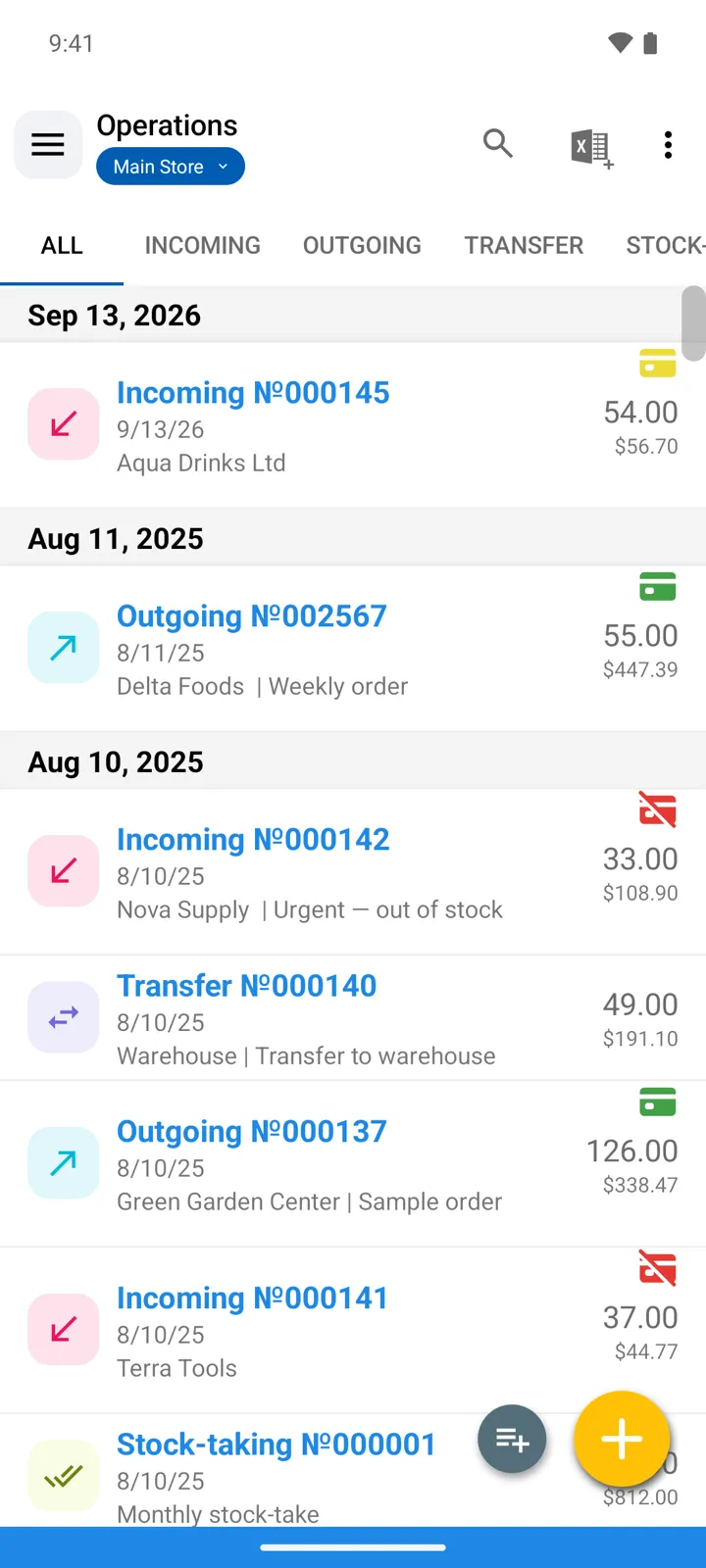
Every change to stock is an operation — a dated document listing items and quantities. The Operations screen is the journal of all of them.
Operation types
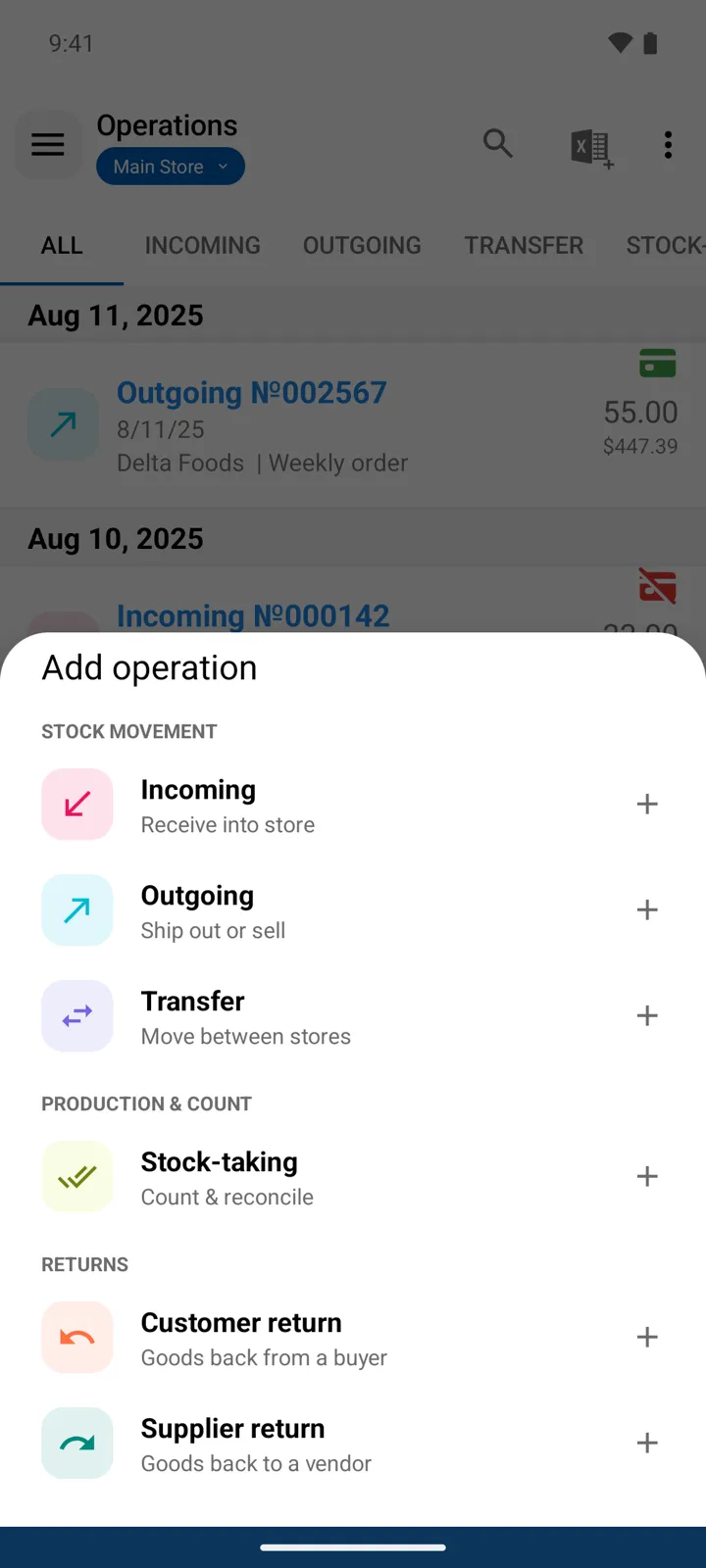
Section titled “Operation types”The + button opens the Add operation sheet, grouped the way the app groups them:
| Type | Hint in the app | Effect on stock |
|---|---|---|
| Stock movement | ||
| Incoming | Receive into store | Increases — guide |
| Outgoing | Ship out or sell | Decreases — guide |
| Transfer | Move between stores | Out of source, into destination — guide |
| Production & count | ||
| Stock-taking | Count & reconcile | Replaces recorded quantities — guide |
| Returns | ||
| Customer return | Goods back from a buyer | Increases — guide |
| Supplier return | Goods back to a vendor | Decreases — guide |
Orders (drafts)
Section titled “Orders (drafts)”An Order is not in that sheet — it’s the second button on the Operations screen, Add Order. It opens the same form but touches no stock: use it for an order, quote, or estimate. The Orders filter shows or hides drafts in the journal, and the draft button inside an order converts it into a real operation — from that moment stock quantities update. Guide.
Anatomy of an operation
Section titled “Anatomy of an operation”The collapsible Properties panel holds the Date, the No., a Comment (with attachments), and a contractor field that depends on the type — Supplier on Incoming (and supplier returns), Customer on Outgoing (and customer returns, with a Discount(%) beside the customer on Outgoing); Transfer asks for the Destination store instead, and Stock-taking has neither. An operation belongs to the store you’re working in (Select store); in All Stores mode you pick the store when creating it. Lines: item, quantity, price (Purchase price on Incoming, Selling price on Outgoing). With a supplier or customer set, the operation also carries Payments and a Paid / Unpaid state — guide.
The list
Section titled “The list”-
Tabs across the top filter the journal to one type — ALL, INCOMING, OUTGOING, TRANSFER, STOCK-TAKING — and returns appear as their own tabs when you work with them.
-
Operations are color-coded by type; the colors are configurable in Settings → View → Operations colors.
-
The toolbar filters and sorts the journal (by type, date, entity).
-
Multi-select several operations to export them to Excel, save them to PDF, or delete them.
-
Deleting an operation reverses its stock effect — quantities go back by what the operation added or removed (for a Stock-taking, by the adjustment the count introduced). If the reversal would push an item below zero, the app refuses unless Allow negative quantity in stock is on.
Printing and exporting
Section titled “Printing and exporting”An operation prints to PDF through customizable templates — Print an invoice or receipt — and operations export to Excel.