
Register purchases
Main → Operations → + → Incoming
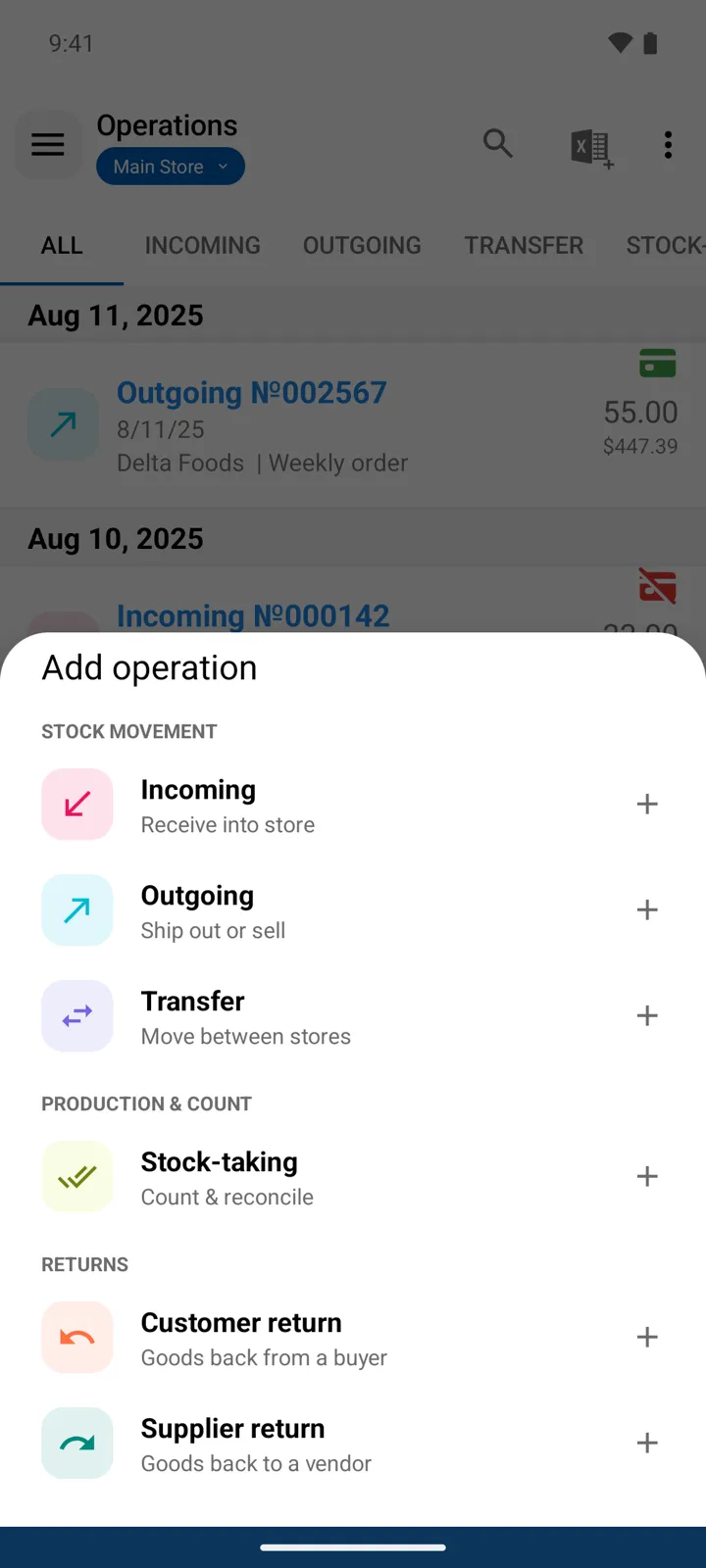
When goods arrive — from a supplier, or as your opening stock — you record an Incoming operation (Receive into store). Saving it increases the stock quantities of every item in it.
-
Open Operations and tap +, then choose Incoming. The New Incoming card on the main screen does the same in one tap.
-
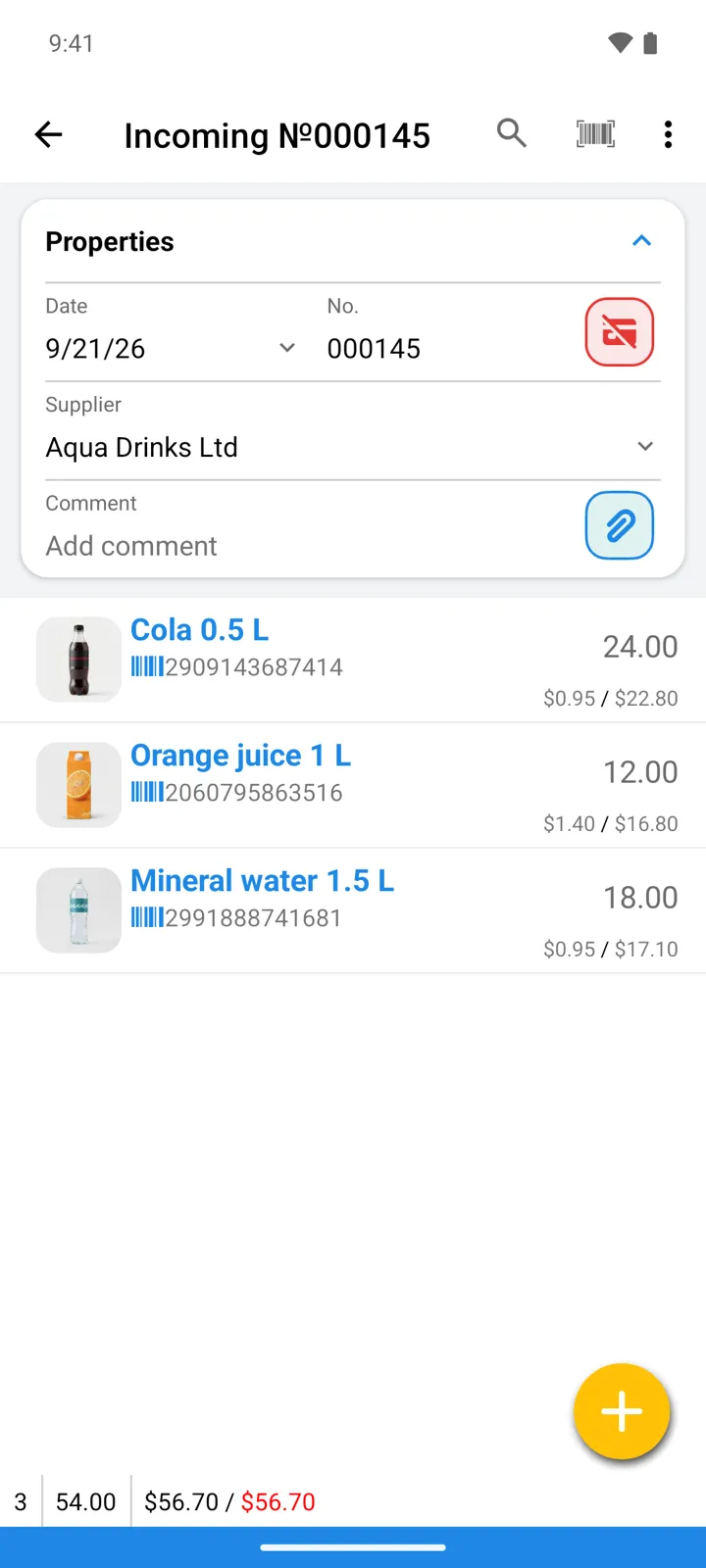
The operation No. and Date are set for you. If you want supplier payments and debts tracked, pick the Supplier in the header.
-
Add the goods: tap the big yellow + button — your goods list opens. Find the item (type in the search field, or tap the barcode icon beside it to scan), tap the item, enter the quantity received, confirm with OK. Repeat for every item in the delivery.
-
Check the Purchase price on each line — it’s what this delivery cost you per unit, and it feeds the profit calculation in Reports.
-
Save. Stock quantities go up immediately.
Receiving a single item
Section titled “Receiving a single item”For a quick top-up of one item, skip the operation editor entirely: open the item in Goods and tap its + button. The Receive goods dialog asks for the quantity, price, and — optionally — the supplier, then records the Incoming operation for you behind the scenes.
Good to know
Section titled “Good to know”- The Batch scan button in the operation screen is the fastest way through a big delivery: scan item after item continuously, and after each scan the app either adds 1 or asks for the quantity — your choice, changeable in Settings → Barcode scanning (scanning guide).
- No barcodes? In the goods list you can also select multiple items and add them all to the operation at once with the button below the list.
- Running several stores? The operation belongs to the store you’re working in (Select store); in All Stores mode the app asks which store receives the goods.
- With a Supplier set, the operation takes part in payment and debt tracking — see Payments and debts.
- Deleting an Incoming operation later reverses its effect on stock.