
Goods
Goods is the catalog: every item you stock, its current quantity in the selected store, and the groups (folders) that organize it.
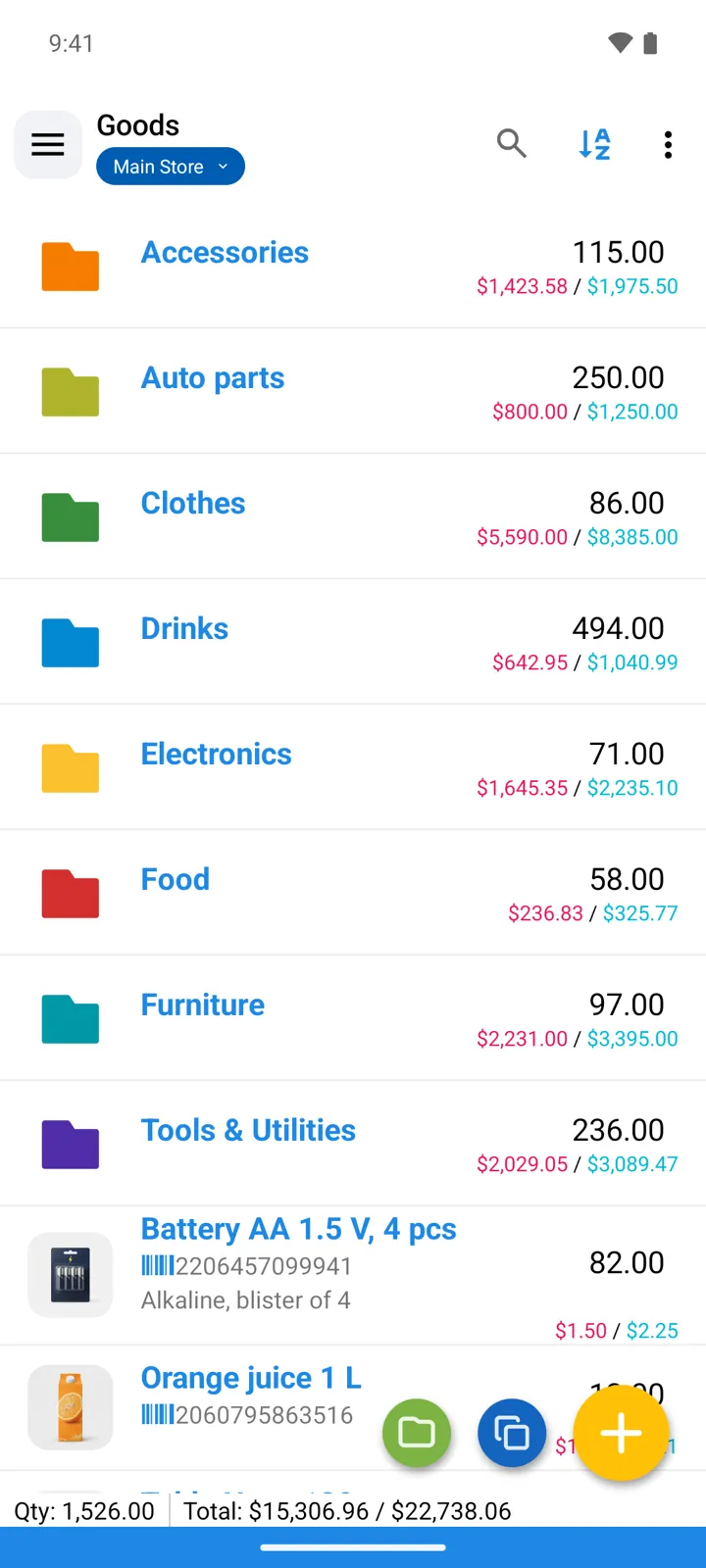
The list
Section titled “The list”- Groups are folders and can nest (Drinks → Juices). Tapping a group drills in.
- Item rows show the name and the current stock quantity (in the store chosen via Select store), plus the fields you’ve enabled in settings — prices, barcode, images.
- The + button adds an item or a group — guide.
- Multi-select several items to delete them, move them to another group, or print them.
Toolbar
Section titled “Toolbar”- Search by name — the search field also has a microphone for voice input and a barcode icon (Scan barcode) that scans and finds the item.
- The funnel button next to the search field picks the search scope — name, SKU, barcode, description, tags, or a custom field — and the Sort by icon orders the list by any column. Search and filter guide.
- The list can be shown as a Table or as a card grid — Cards (small) or Cards (medium). Switch it right on the Goods screen via ⋮ → List settings, or in Settings → View → Goods.
What an item holds
Section titled “What an item holds”Tap an item to open its card — the same form you fill when adding goods. In form order: Name · SKU · barcode · Description · quantity (with Unit of Measure) · Minimum quantity · Purchase price · Selling price · photos — plus its folder (shown as the path under the title), Tags, and your custom fields.
Which of these appear as columns in the list itself is a separate choice — see Related settings below.
Quantity is not edited here — it’s the result of operations. Under the quantity, the card has an expandable All stores quantities section showing the item’s stock per store.
Related settings
Section titled “Related settings”Settings → Goods properties controls which columns the list shows; Settings → Prices configures price behaviour; custom fields have their own settings group.