
Main screen
The main screen is a grid of cards. Which function each card shows is up to you (see Customizing the grid below); the menu drawer (☰) always lists every screen, plus subscription management and the privacy policy — but the one-tap shortcuts (the New … operations, Select store, Scan barcode) live only on cards. In the toolbar, the colored pill under the title shows the store you’re working in; tap it to switch.
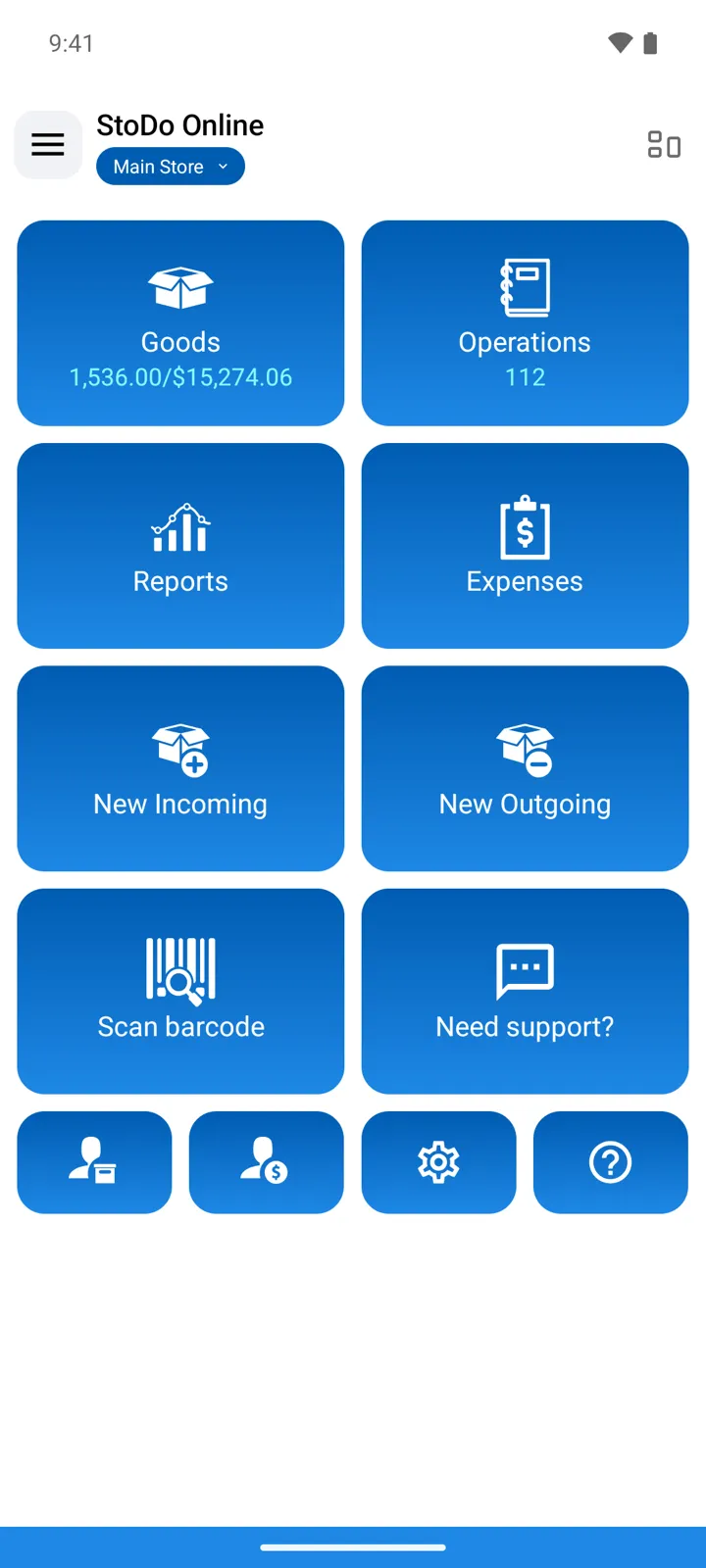
All functions a card can show — ● marks the default layout:
| Function | What it does |
|---|---|
| ● Goods | The catalog with current stock quantities — reference |
| ● Operations | All stock movements — reference |
| ● Reports | Stock movement, profits and losses, sales, debts |
| ● Expenses | Non-goods costs, by category |
| ● New Incoming | Creates an Incoming operation — guide |
| ● New Outgoing | Creates an Outgoing operation — guide |
| ● Scan barcode | Scans a barcode and finds the item |
| ● Suppliers / Customers | The entities used on operations |
| ● Settings | App preferences, grouped by area |
| ● Help / Need support? | The help menu and the feedback form |
| New Stock-taking | Creates a Stock-taking operation — guide |
| New Transfer | Creates a Transfer operation (asks for the destination store) — guide |
| Stores | Your locations |
| Select store | Switches the store you’re working in — the card shows the current store’s name |
| What’s new | The app’s changelog |
| ”- Do not use -“ | Leaves the card empty |
Operation-creating cards use the store you’re currently working in; in All Stores mode they first ask which store.
Customizing the grid
Section titled “Customizing the grid”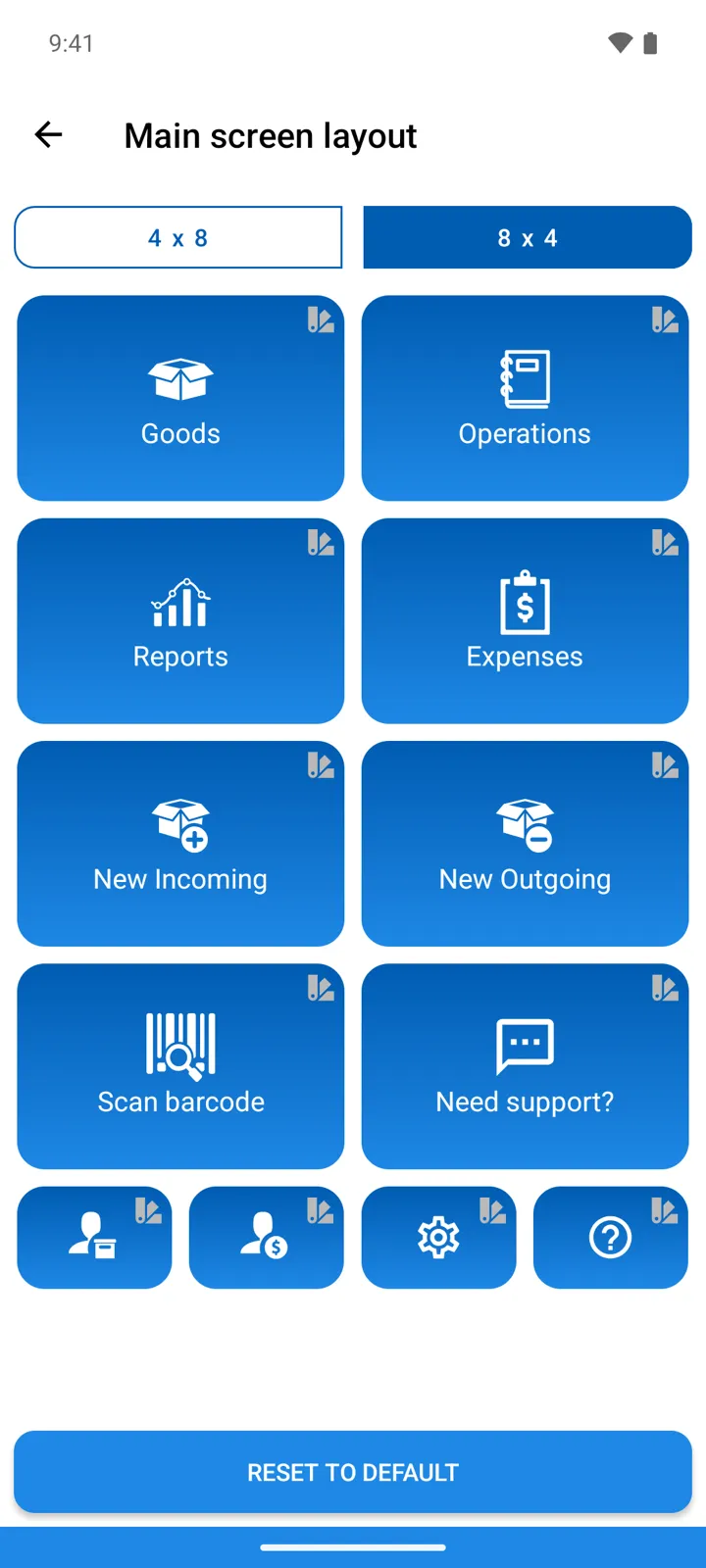
The layout button in the top right of the main screen opens Main screen layout: choose the grid arrangement, assign any function from the table above to any card, and set a color per card — so the functions you use daily sit on top, in colors you recognize.
Online: users only see the cards their profile gives them access to — someone without Reports access has no Reports card.