
Print barcode labels
Main → Goods → ⋮ → Print
Goods without labels are goods you can’t scan. StoDo prints labels and price tags itself — through the same template system that prints invoices, with barcode images in the symbology you choose.
-
Decide what to label. The whole catalog (or the group you’re browsing): Goods → ⋮ → Print. A hand-picked set: ⋮ → Select items, tick them, then Print. A single item: the ⋮ → Print in its own card.
-
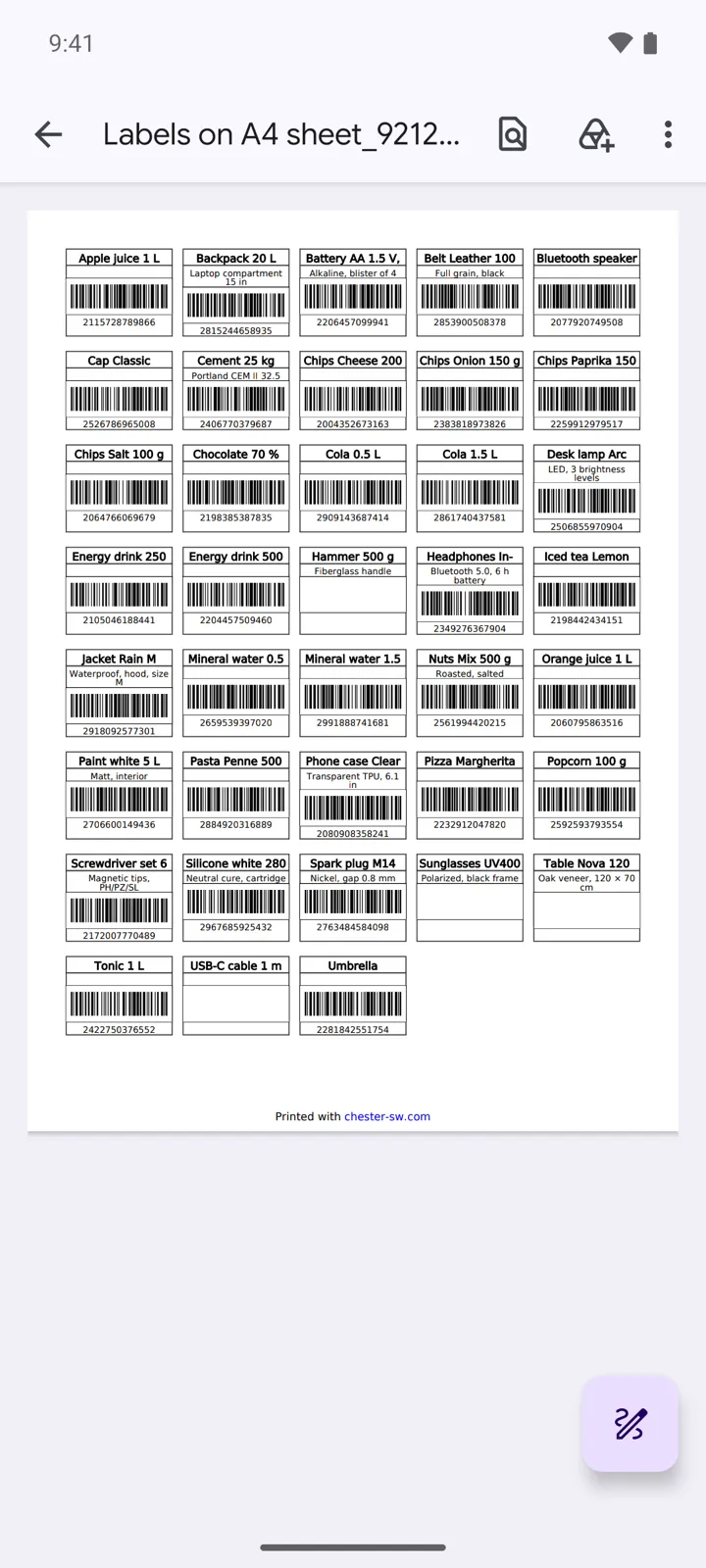
Pick a label template in Select print template. The Download gallery has ready-made ones: Labels on A4 sheet for sticker sheets (each label carries the name, description, and barcode), Roll labels - with barcodes and Roll labels - price tags for label rolls.
-
The app builds a PDF — one card per item — and offers Open, Print, Share, or Save. Print on sticker paper, cut, done.
-
Make the labels yours by editing the template: labels are Cards-style templates, so you set the number of columns per page, a Custom size in mm for your roll, and which fields each card carries — name, price, the barcode image, even a QR code.
Good to know
Section titled “Good to know”- The barcode image renders the item’s stored barcode in the symbology you pick on the template item — EAN-13, EAN-8, UPC-A, UPC-E, CODE-128, CODE-39, CODE-93, CODABAR, or ITF — pick the one your barcodes actually are. Print value under barcode adds the human-readable digits.
- Repeat each card “Quantity” times in the template prints one label per unit in stock — 12 in stock, 12 labels.
- Labeling a delivery? The label templates exist for operations too: open the Incoming operation, ⋮ → Print, and pick a roll-label form to label exactly what arrived.
- Printing the list ignores an active search — it prints the catalog, the current group, or your selection. For an arbitrary subset, use Select items.