
Suppliers and customers
Suppliers are who you buy from, Customers are who you sell to — two twin screens with the same controls. Naming a supplier on an Incoming operation (or a customer on an Outgoing one) is what switches on payment and debt tracking for it.
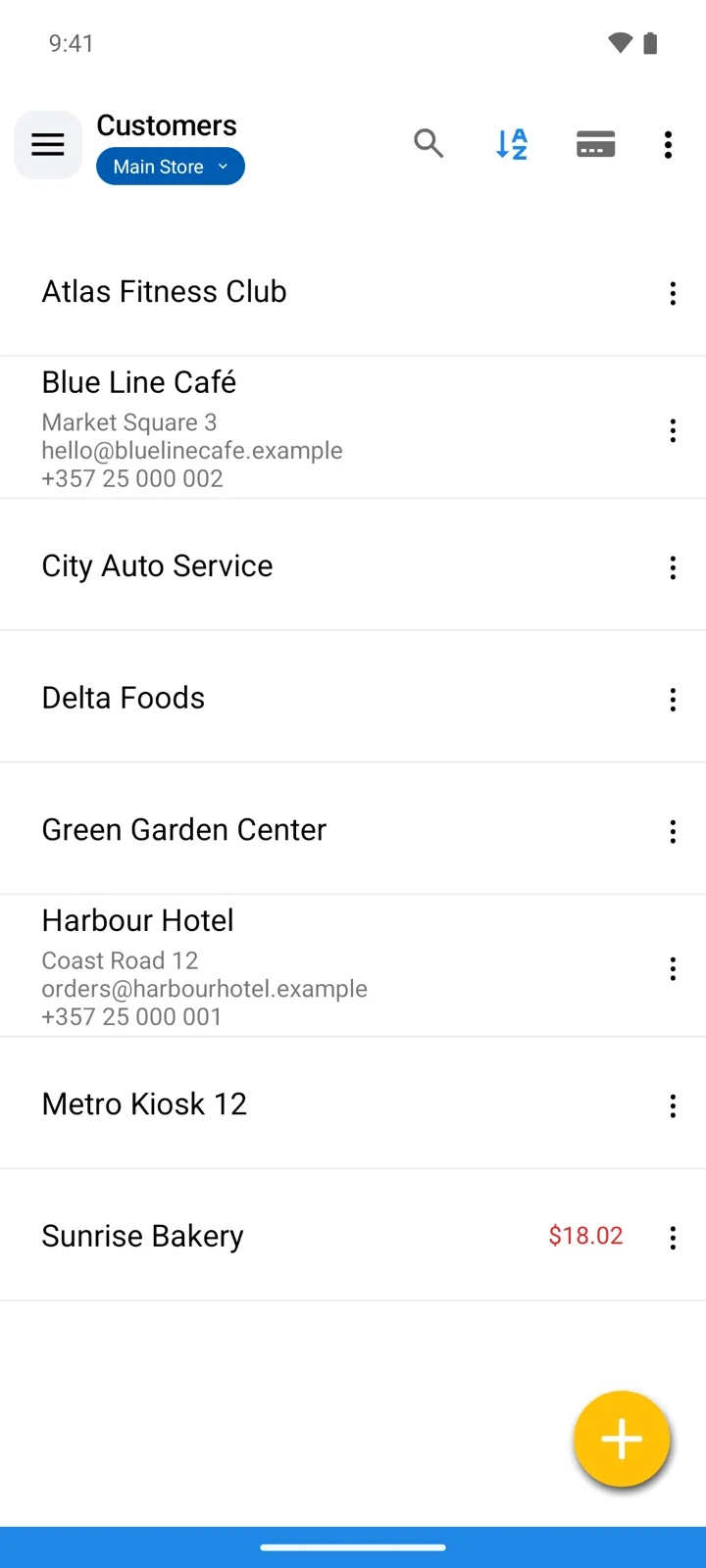
The list
Section titled “The list”| Control | What it does |
|---|---|
| Row | The name, the contact lines you’ve enabled, a badge when a price list is bound, and — when it isn’t zero — the outstanding balance. Hidden entries are greyed out and sink to the bottom. |
| Tap / swipe | Tap to edit; swiping left reveals quick buttons — view transactions, edit, hide, delete. |
| ⋮ on a row | View transactions (every operation with this entity), Send E-mail, Send SMS, Phone Call, WhatsApp. |
| Search | Filter by name — typed or dictated. |
| Sort by | Reorder the list. |
| Settings | Choose what a row shows: address, e-mail, phone, notes, the balance. |
| Import from Excel / Export to Excel | Move the whole list in and out as a spreadsheet — how importing works. |
| Import from Contacts | Pull people straight from the phone’s contact book. |
| + | Add an entry. Without a subscription each list takes up to 10; the Customers and Suppliers premium feature lifts the limit. |
The card
Section titled “The card”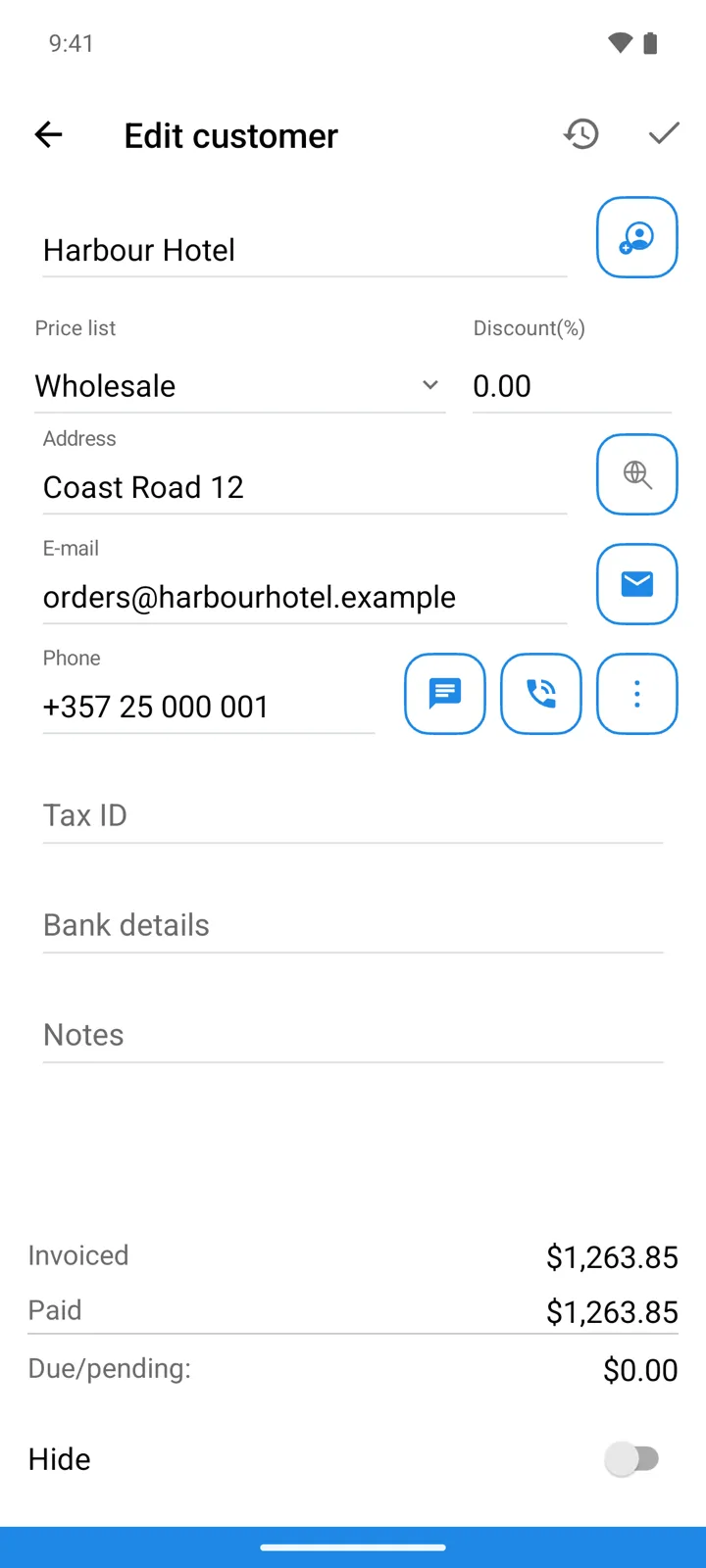
In form order (every field except the name is optional):
| Field | What it does |
|---|---|
| Name | Required and unique — a duplicate name is refused. The button beside it fills the card from the phone’s Contacts. |
| Price list | Customers only: binds a selling price list to this customer. Appears only where price lists are available — currently StoDo Simple, with Use Prices on. |
| Discount(%) | Customers only: the customer’s percentage discount. |
| Address, E-mail, Phone | Contact details, each with an action button — write, message, or call without leaving the card. |
| Tax ID, Bank details | Company requisites. |
| Notes | Free-form remarks. |
| Hide | At the bottom of the card — see Hiding and deleting below. |
With Use Prices on, the card also totals the relationship: Invoiced, Paid, and Due/pending — the same numbers the payments guide works with.
Debts at a glance
Section titled “Debts at a glance”The list shows each entity’s outstanding balance right on the row, and the Reports screen breaks the same numbers out as Debts by Customer and Debts by Supplier — alongside Purchases by Supplier and Sales by Customer for turnover — reports reference.
Hiding and deleting
Section titled “Hiding and deleting”- An entity with operations behind it can’t be deleted — the app answers “You have transactions attached to this entity. Deletion prohibited!”.
- That’s what Hide is for: a hidden entity disappears from the pickers when you fill an operation’s Supplier or Customer field, but keeps its history and stays on this screen, greyed, until you unhide it.