
Price lists
Main → Settings → Prices → Price lists
One selling price isn’t always enough: a wholesale buyer pays less than a walk-in customer, and your outlet store prices differ from the main shop’s. A price list is an alternative set of selling prices for your catalog. Bind one to a store or to a customer, and the app picks the right price by itself.
-
Open Settings → Prices → Price lists and tap Add new price list. Name it, then choose how to start: Leave empty (zero prices), Copy base item prices, or — once you have another list — Copy from another price list….
-
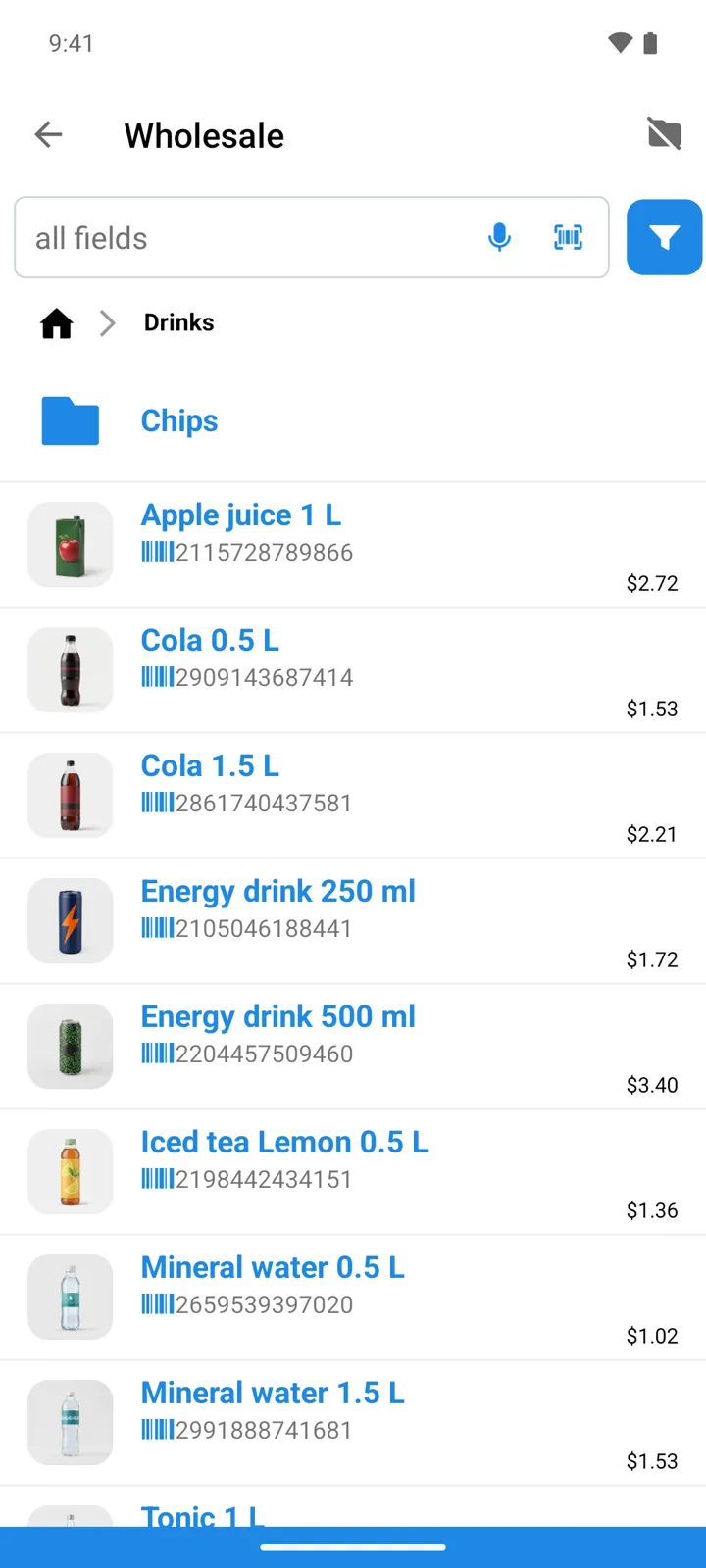
Fill in the prices. The list opens like your catalog — browse it with the groups toggle and set each item’s selling price in this list. Items you skip keep a zero price in the list.
-
Bind the list to a store (its Price list field) or to a customer (customers only). The bound list’s name appears as a badge on the store or customer row.
-
Sell as usual. On an operation the app resolves the price in this order: the customer’s price list first, otherwise the store’s, otherwise the item’s base Selling price.
Good to know
Section titled “Good to know”- Outside operations the working store’s list applies: the Goods list and the item card show that list’s selling prices. In - All Stores - mode you see base prices. In the item card, the Selling price field carries a badge with the active list’s name — tap it to see the item’s Base price or jump straight into the list.
- A zero price in the active list isn’t blocked — the app warns (“The price list has no price for …”) and puts 0 on the line. Fix the list, or the line by hand.
- Deleting a list that’s still bound asks first: “This price list is used by a store or customer. Delete anyway?” — after that, those stores and customers fall back to base prices.