
Orders
Main → Operations → Add Order
Sometimes the paperwork comes before the goods move: a customer asks for a quote, a purchase waits on the supplier’s confirmation, a delivery is booked for next week. An order is exactly that — an operation written out in full but not yet applied. Stock quantities stay untouched until you convert it, as the app itself puts it: “Create an order, quote, estimate, or draft without adjusting stock quantities”.
-
Open Operations and tap Add Order — the second button next to +. On the All tab the app asks which kind to create; orders exist for Incoming, Outgoing, and Transfer (not for stock-taking or returns).
-
Fill it in like any sale or purchase — the editor is the same, with lines, prices, and the Customer / Supplier field. Saving changes nothing in stock, and the order stays out of your reports.
-
Spot orders in the list: their type icon is drawn as a dashed outline and the number is tinted in the order color. To see them alone, open the list filter — the Type section has an Orders chip (Completed is everything else).
-
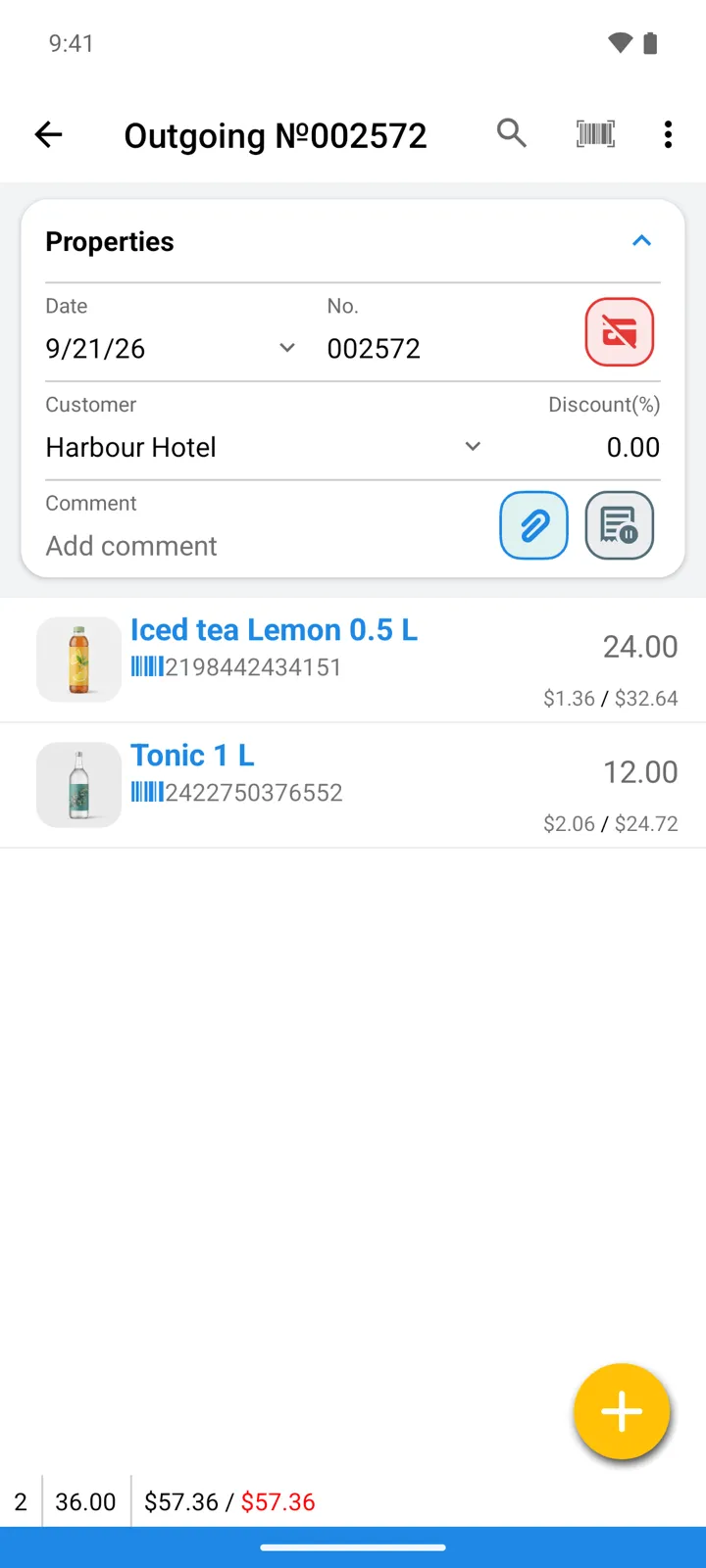
When the deal is confirmed, open the order and tap the order status button — the outlined document icon next to the attachments clip. The order becomes a real operation — “Stock quantities updated” — and quantities move at that moment.
Good to know
Section titled “Good to know”- Converting applies the usual stock rules: if an Outgoing order asks for more than is available, the app cancels the conversion — “Operation can result in negative quantity in stock” — unless Allow negative quantity in stock is enabled in settings.
- It’s reversible: the status button stays on the converted operation, and tapping it again turns it back into an order, rolling the stock change back.
- Only operations that started life as orders have that button — a regular operation created with + can’t be turned into one.
- An order carries the same payment state button as a real operation — the red Unpaid button next to its number. You can already mark a prepaid order Paid; only the itemized Payments list in the ⋮ menu waits until the order is converted.
- Exporting the operations list to Excel includes a status column — Order or Completed — so pending orders are easy to filter in a spreadsheet.