
Handle returns
Main → Operations → + → Customer return / Supplier return
A buyer bringing goods back is a Customer return (Goods back from a buyer — stock goes up). Goods going back to a vendor are a Supplier return (Goods back to a vendor — stock goes down). Neither is a negative sale or purchase: a return is linked to the operation that shipped or received the goods, so quantities and prices stay consistent.
-
In Operations, tap + and pick the return type from the Returns group of the Add operation sheet.
-
A new return immediately asks for the Customer (or Supplier). Pick one — or close the picker to handle a no-name retail return: you’ll then be returning from operations that had no customer set. Either way, the choice locks once the return has lines.
-
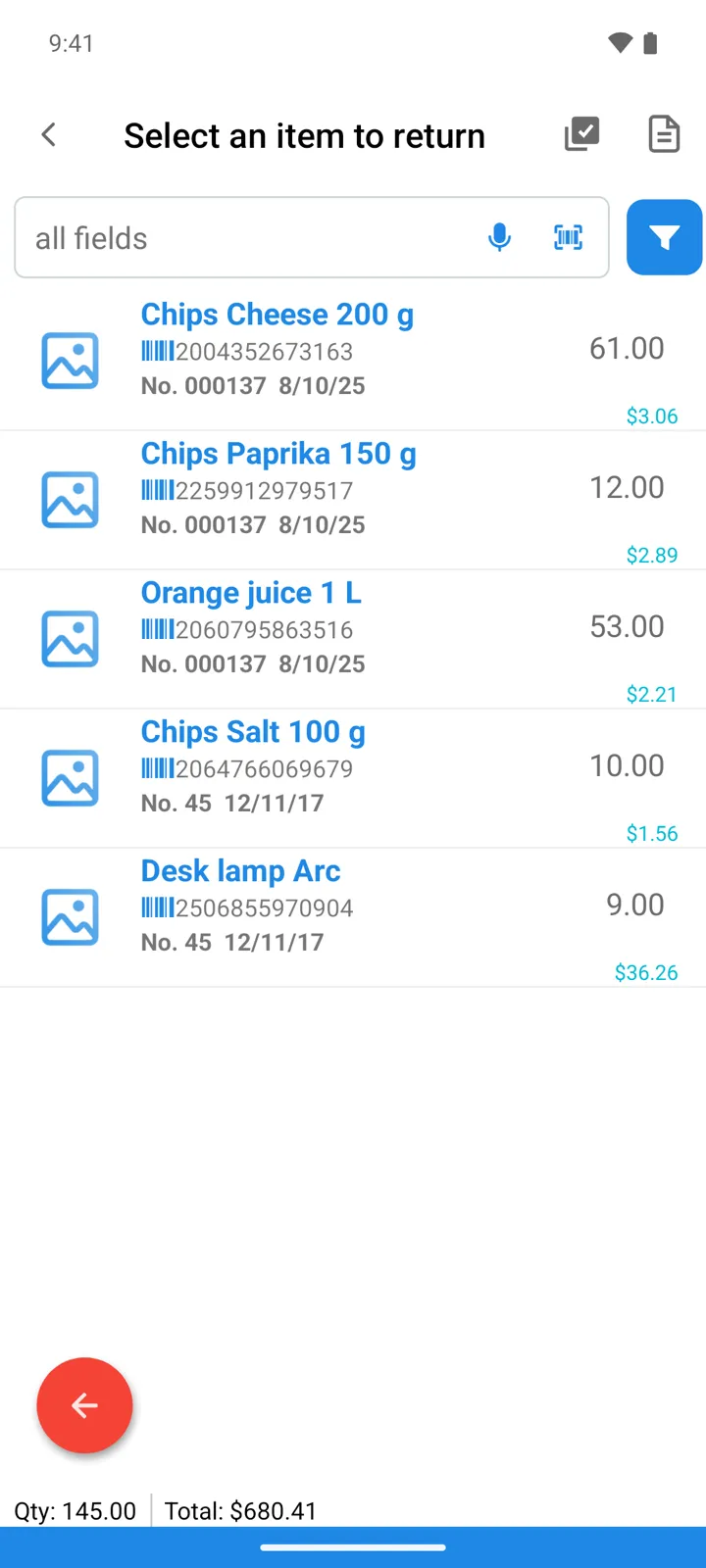
Tap the big yellow +. Instead of the goods catalog you get Select an item to return — one row per line of a past operation with that customer (or supplier), each showing the operation’s number and date and how much is left to return. Search, voice, and barcode lookup work just as in the goods list.
-
Tap a row and enter the quantity coming back — the dialog shows Available: (what’s left to return) and the source line’s price, and the app won’t let you overshoot: “You can’t return more than was shipped or received”. Scanning barcodes instead? When a scanned item came from several operations, the app asks you to Select the source operation for the return.
-
Save. A Customer return puts the goods back into stock; a Supplier return takes them out.
Good to know
Section titled “Good to know”- Once you work with returns, they get their own tabs in the Operations journal, and Stock Movement gains Cust.return / Suppl.return columns — reports reference.
- When an item has been fully returned, the picker tells you: “There’s nothing left to return for this item”.
- Returns don’t carry payments — payment and debt tracking lives on Incoming and Outgoing operations only.