
Expiry dates
Main → Settings → Custom fields for Goods
Food, cosmetics, medicine — anything with a date on the pack can be tracked in StoDo. Expiry tracking is built on a Date custom field with one switch flipped, so it comes with everything custom fields have (and needs Premium, like they do).
-
Create the field: Settings → Custom fields for Goods, tap +, pick the Date type and name it Expiry date.
-
Switch on Treat as Expiry Date. The expiry options unfold: When days before this date is less than — how many days ahead counts as “expiring soon” — and a warning color. Pick one: a new field starts with no color, and without it the list won’t highlight anything.
-
Want the app to speak up? Enable Send notification and set the Notification text (“Expiry warning” by default) and Notification time. Once a day at that time, StoDo checks the dates and posts a notification for each item inside the warning window.
-
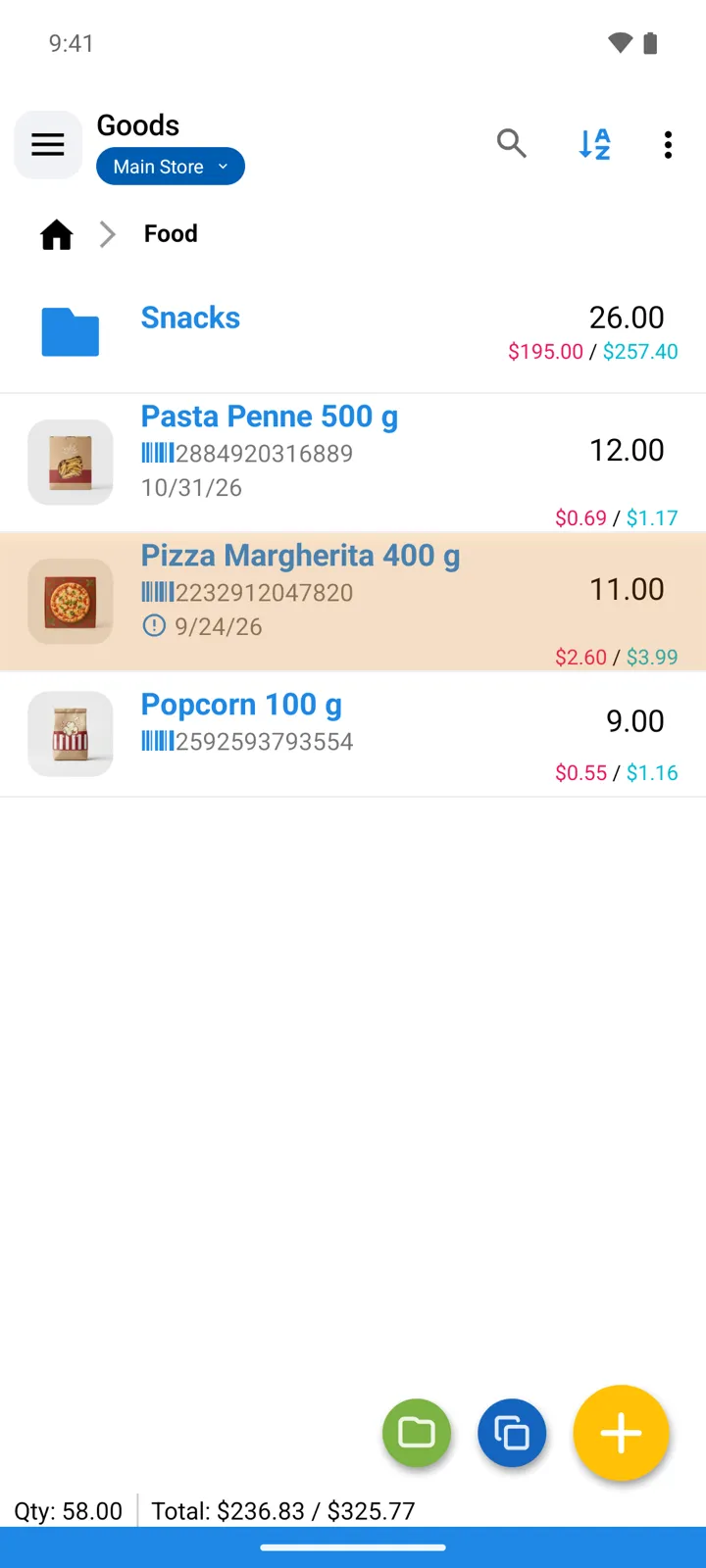
Fill the dates as goods arrive — the field sits in the item form after the description. From then on, items within the window (and past their date) get their row tinted in the warning color in the Goods list, with the date marked.
Good to know
Section titled “Good to know”- Already-expired items keep warning — the check is “days left is less than X”, and negative days left qualify.
- The date is searchable and sortable like any custom field: sort the catalog by Expiry date to see what should leave the shelf first.
- One date per item, not per batch: if two deliveries of the same item have different dates, StoDo tracks the one date you keep in the field — most shops store the earliest upcoming date.
- You can have several date fields with expiry treatment at once (say, Best before and Sell by), each with its own window, color, and notification.